
Manual › Tree surgeons
For professionals
Registering for free as a tree surgeon, plant care specialist or landscape gardener, filling in your profile, following up requests on your worksheet, scheduling your jobs on a map, setting holidays, working with a team and assigning jobs, keeping track of your hours, materials and before and after photos per job, making a tree safety inspection (VTA) report, making quotes and invoices, looking at your figures and replying to reviews.
As a tree surgeon, plant care specialist or landscape gardener you can be listed for free. Garden owners in your service area find you, share their garden, vegetable garden or houseplants with you and send you requests. After the work, they can write a review.
Registering
- Create an account, tick I’m a professional and choose your profession. Or later choose Register as a tree surgeon under Account.
- Fill in your profile:
- your name or company name, your VAT or company number if you like, phone, email for customers and website;
- your service area: where you’re based and how far you’re willing to travel;
- your profession: tree surgeon, plant care specialist and/or landscape gardener (you can choose more than one);
- your services and certificates (European Tree Worker, European Tree Technician, VTA, tree climber, Groenkeur, VCA…);
- a short introduction;
- for invoices, your address, your IBAN and your VAT scheme (see Quotes and invoices).
- With Visible in the list of professionals you choose whether garden owners can find you. If you go on holiday, add a period there (see Holiday or no new requests). You can also delete your profile.
An administrator can mark your profile as verified.
Professions and services
Customers filter by profession and by service. Choose everything that fits what you do:
| Profession | For example these services |
|---|---|
| Tree surgeon | Pruning, felling, pollarding and coppicing, tree safety inspection (VTA), stump grinding, emergency call-out (storms), tree advice. |
| Plant care specialist | Houseplant care, vegetable garden upkeep, pests and diseases. |
| Landscape gardener | Garden maintenance, planting and garden design, lawn, hedge trimming, planting. |
When a customer requests a job for a vegetable garden or houseplants, they choose from what fits there: vegetable garden upkeep, houseplant care, garden maintenance, disease or pest, advice… (see What can you request?).
Your worksheet
In the menu you’ll find Worksheet, with all your requests and the gardens that have been shared with you: your numbers at the top (new, in progress and prunings for clients in the next 2 months), then the new requests next to what is accepted and scheduled, your schedule, your team, your maintenance contracts, your quotes and invoices, your figures, the next tree inspections, what is due for pruning soon at clients’ gardens, and your clients.
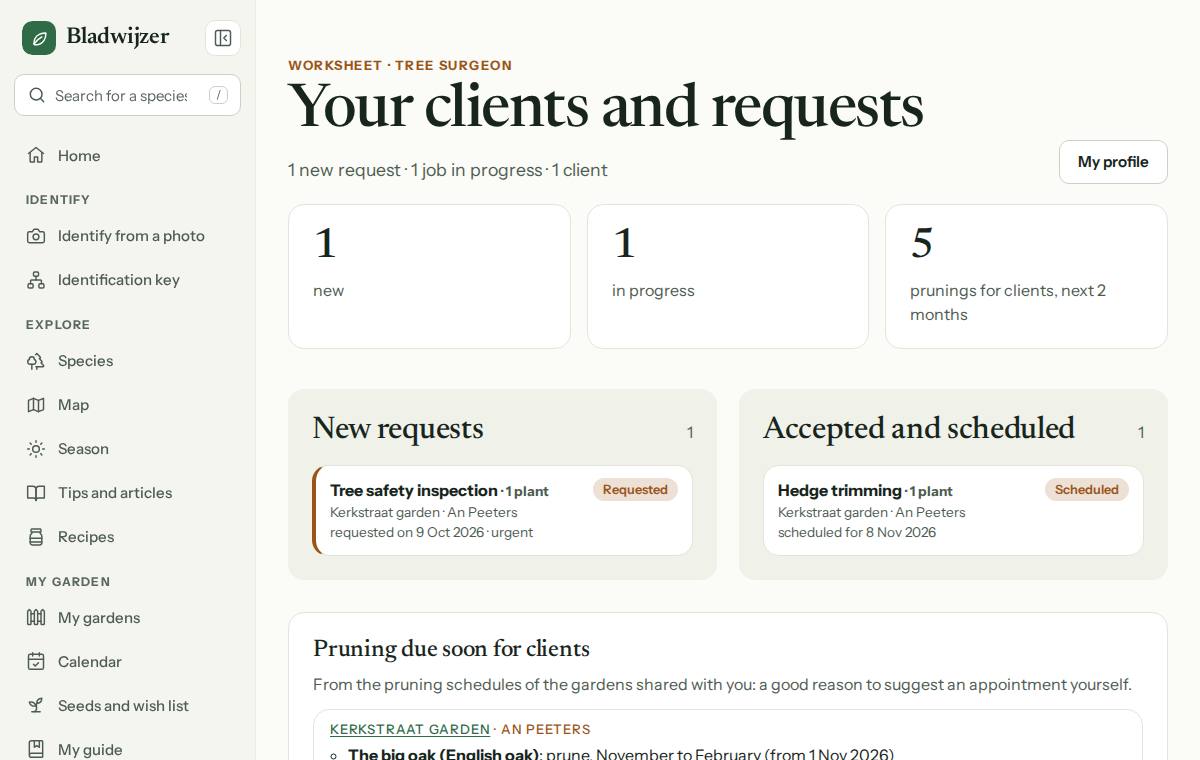
For each request:
| Button | What it does |
|---|---|
| Accept | With a date and a quote straight away, or later. |
| Schedule | Choose or change a date. You immediately see the warnings for that date. |
| Quote | E.g. “€250 incl. VAT, removal included”. |
| Completed | With the date and a report. The client’s pruning schedule moves along with it, and the report appears in the garden’s log (without the price). |
| Decline | With a reason that the client can see. |
For every request you get an email with the work order (PDF) and the client’s attachments. You send a price as a quote or invoice under Quotes and invoices; other attachments go under Attachments. Your hours, materials, before and after photos and tree inspections are kept on the job itself.
In a garden that’s been shared with you, you can also see the log with the photos and problems, and write in it yourself.
Tip
If a request goes unanswered for a few days, you’ll get a reminder by email.
Schedule
Your worksheet has a Schedule block with your jobs of the next two weeks. Choose Open the schedule (or go to Worksheet › Schedule) for all the jobs you have scheduled, that is, jobs with a date.
- Day or week. Choose Day or Week at the top and browse with the arrows or with Today. Each job shows the type of work, the garden, the client and the place; a tap opens the job. If the date has passed and the job is not completed yet, you’ll see that too.
- A map and a sensible order. For the chosen day the jobs are numbered on a map, with a line between them. Bladwijzer starts at your base (from your profile) and each time picks the nearest client. If you haven’t set a base, the route starts at the first client. A garden without a place on the map (e.g. a vegetable garden without a map) is listed at the bottom, without a number.
- Opening the route. Route in Google Maps and Route in Apple Maps open the whole route, with the stops in between in this order. Google Maps takes 10 stops at most.
- In your calendar. At the bottom you make a calendar link (the same one as on Agenda). Your scheduled jobs appear in it as all-day appointments, with the client, the place and a link to the job. A new date moves the appointment automatically.
- With a team. Each job shows who is doing it, with an Assign button; with Who at the top you choose one team member or what is not assigned yet (see Your team).
Good to know
The order is a suggestion (always the nearest) and the distances are as the crow flies: Bladwijzer does not work out a real route by road. Feel free to change the order in your maps app.
When scheduling
If you choose a date with Schedule (or with Accept), Bladwijzer immediately shows what goes with that date:
- the nesting season: from mid-March to mid-August birds nest in trees and hedges, and disturbing an occupied nest is against the law. You get the warning for pruning, hedge trimming, pollarding and felling if the date falls in that period;
- for felling, the permit: in Belgium you often need a permit, in the Netherlands sometimes a felling permit, with a link to the Omgevingsloket (Flanders) and the Omgevingsloket (Netherlands). What is needed differs from one municipality to the next: check with the municipality.
Holiday or no new requests
Going on holiday, or fully booked? In your profile, under Holiday or no new requests, set a period (From and To (inclusive)) and, if you like, a short message, e.g. “Back on 3 November. For emergencies: call 0470 12 34 56.”
- During that period your entry in the list of professionals shows a badge Not taking new requests until …, with your message. A client can then no longer send you a new request: they see your message.
- Jobs already in progress simply carry on: accepting, scheduling, messages, quotes and invoices. Only new requests are affected.
- Leave From empty to start straight away. To (inclusive) is the last day; after that your entry is back in the list as normal. A period that hasn’t started yet can be saved too: the badge only appears on the first day. Empty the fields to remove the period.
Your team
Do you work with a team? Invite your team members to your team and assign them jobs. They see those jobs on their own worksheet, schedule and calendar, record their hours, materials and photos there, and mark the job as done. Prices, quotes, invoices, contracts and your figures stay with you.
Inviting someone
On your worksheet, choose Invite team members in the Team block (or go to Worksheet › Team). Enter the email address, choose the role and add a short message if you like. If your own address is confirmed, Bladwijzer emails the invitation; otherwise you open it in your own email program or copy the link. The link is valid for 30 days and works once. Anyone without an account creates one for free with the same link.
| Role | What they see and do |
|---|---|
| Team member | Only the jobs assigned to them: the client, the garden with a Directions button, the description, the plants, the attachments, the work order without prices and the messages. They record hours and materials (without prices), add before and after photos, write messages, fill in a tree safety inspection and mark the job as completed. |
| Planner | Everything a team member can do, for all of the team’s jobs, and on top of that assign, accept and schedule. Sees the whole team’s schedule and filters by team member. |
Neither of them sees prices (not the price estimate, nor the price of materials), quotes, invoices, maintenance contracts or your figures, and neither of them opens the client’s garden itself: only what belongs to the job. Declining and giving a price estimate is up to you alone. In a job’s thread they see the client’s messages and yours, but not the lines about prices, quotes and invoices.
Good to know
People belong to one team at a time. Anyone with their own team can’t join another one: that way it’s always clear who a team member works for. A team member with their own professional profile keeps their own clients and worksheet.
Under In your team you see who is already in it and which invitations are still pending. There you change the role, resend an invitation or remove someone from the team. Whoever you remove (or who leaves themselves) immediately sees nothing more of your jobs; their hours stay with the jobs.
Assigning jobs
On a job, Team shows who is doing the work. Choose Assign and tick one or more people from your team. You can also do this in the schedule: every job there has an Assign button, and with Who at the top you show the jobs of one team member or what is not assigned yet.
- Whoever you assign gets a notification (and an email if they want) and sees the job on their worksheet, their schedule and their calendar link. Whoever you remove also gets a notification and no longer sees the job.
- A team member gets a notification for a message from the client, a new date or a cancellation.
- The client sees who is coming, with the first name and the initial of the surname (e.g. Mia M.).
Hours per team member
Under Hours and materials every team member records their own hours. You and a planner choose someone from the team under Who worked?, e.g. if you enter the whole team’s hours yourself. Per person shows how much each person worked, and your work order shows who did the work on every entry. A team member only changes their own entries, and only as long as they aren’t on a quote or invoice yet.
With Put on an invoice, you choose under The hours how they go on the document: one line per entry, one line per person (e.g. Hours worked by Mia Maes (9 October 2026) with all her hours together) or everything on one line. The hourly rate is the same for everyone; change it per line on the draft if needed.
Recurring maintenance
Does the same work come back every year, like the hedge in June or the espaliers in winter? Agree a maintenance contract with the client: Bladwijzer then proposes each next visit to the client itself, and puts it on your worksheet.
Creating a contract
- From a job. Open a (completed) job and choose Create a maintenance contract. The type of work, the plants, the month and the quote are already filled in. The contract starts the following month, so that the first visit is the next one.
- From your worksheet. Under Maintenance contracts, choose New contract and a garden that has been shared with you. You will also find Create a contract under the jobs of a garden.
A contract has one or more visits. For each visit you choose:
| Field | What |
|---|---|
| What needs doing? | The type of work, as for a job: pruning, hedge trimming, garden maintenance … |
| How often? | Every year in one month or a period of months (From … To (inclusive), even over the turn of the year, e.g. November to February), or every few months (1 to 24), starting in the month of the start date. |
| Plants | Optional: which plants in the garden it is about. |
| Guide price | Optional, e.g. “€180 incl. VAT, removal included”. The client sees it as the quote with each proposal. |
| Lines for a quote | Optional, as in a quote. With each proposal, Bladwijzer turns them into a draft quote straight away, which you check and send. |
| Note | Optional, e.g. “Both sides and the top.” |
You also choose a start date, optionally an end date, and write a note for the client. Under each visit you see straight away when the first one falls and when Bladwijzer will propose it. As long as the contract is a draft, only you can see it and you can change it as much as you like. With Send to the client the client gets a notification; after that the contract is fixed. To change something, stop it and create a new contract.
Accepting, declining and stopping
The client (the owner of the garden, or whoever may request jobs there) accepts the contract or declines it with a reason; you get a notification. You can withdraw a contract that is still awaiting a reply. Either of you can stop a running contract, with a reason if you like. Proposals the client has not yet replied to then lapse; confirmed and scheduled visits stay. A contract with an end date ends by itself after that day.
The next visit
Six weeks before the period of a visit, Bladwijzer proposes it (if the first visit already falls within those six weeks, right when the contract is accepted):
- a job is created with the status Proposed, with the preferred period, the plants, the guide price and your note, and with lines a draft quote;
- the client gets a notification (and an email, if they want one) and confirms with one click, or skips the visit if it is not needed;
- you get a notification too, and the visit appears on your worksheet under Proposals awaiting the client.
As long as the client has not replied, you can already propose a date: it appears with Proposal in your schedule and as tentative in your calendar. Once the client confirms, the visit is scheduled straight away (without a date: accepted), and you carry on as with any job. With Withdraw the proposal, the visit does not go ahead.
Each visit is proposed only once per period. If the client does not reply before the end of the period, the proposal lapses and you get a notification. A skipped or lapsed visit does not come back; the next period does.
Good to know
No proposal is made if you are on holiday for the whole period, or if you or the client no longer have access to the garden. If you are away for part of the period, the preferred period shifts. Proposed visits do not count as requests in your figures.
On your worksheet, the Maintenance contracts block shows your running contracts, the next visits (month, type of work, garden and client, and when Bladwijzer will propose them), the proposals awaiting the client, the contracts awaiting a reply and what is still in draft.
Per job: hours, photos and tree inspection
For each job you keep track of what you did: your hours worked and the materials, photos from before and after the work, and for a tree, if needed, a tree safety inspection as a report.
Hours and materials
Under Hours and materials you record:
- Log hours: the day, the duration (2:30 or 2.5 for two and a half hours, 45 min) and what you did. At most 24 hours per entry.
- Log materials: what you used (e.g. tree ties, stakes, waste bags), the quantity, the unit and, if you like, the price excl. VAT. If the client asked for equipment from your hire items (e.g. the chipper), one click fills it in with your daily price.
At the top you see the total hours and the total of the materials with a price and, if a team works on it, the hours per person. The pencil edits an entry, the bin deletes it.
Important
Only you can see your hours and materials, also on your own work order (PDF), and so can the people in your team who do the job, without prices. The client does not see them, not even on their work order: they only see what you put on a quote or invoice and send.
Putting them on an invoice or quote. Choose Put on an invoice or Put on a quote. Tick what should go on it (anything not yet on an invoice is already ticked), enter your hourly rate excl. VAT (Bladwijzer remembers it for next time) and the VAT rate, and choose a new draft or an existing one. With a team, you also choose whether the hours go on the document per entry, per person or together. Each entry becomes a line: the hours in hours (twenty minutes is 0.33 hours) at your hourly rate, the materials at their price (without a price: 0, to fill in on the draft). The draft opens straight away: check it and send it as usual. Each entry then shows which invoice or quote it is on. If you delete that draft, the entry is free again; correcting an entry afterwards does not change an invoice you have already sent.
Before and after photos
Under Before and after photos there are two columns side by side: Before and After, the first photo from before next to the first one from after. Add a photo opens your phone’s camera straight away. The client can add photos too (e.g. from before the work), and you both see everything. A photo that is already under Attachments can be moved with the list to Photo before the work or Photo after the work, and back.
The photos also appear side by side on the work order (PDF), with the date underneath (the first six pairs). A job can have 20 attachments in total.
Tree safety inspection (VTA)
A visual tree assessment (VTA) is recorded per tree in a report. Under Tree safety inspection, choose Inspect a tree and the tree: one of the plants of the job or, if the job has none, a tree in the garden. Fill in:
| Part | What |
|---|---|
| The tree | The date of inspection, the trunk girth (at 1.3–1.5 m) and the trunk diameter in cm (without a diameter, Bladwijzer works it out from the girth), the height and the crown spread in metres. For a second inspection of the same tree, the previous measurements are already filled in. |
| Vitality | Good, slightly reduced, severely reduced, declining or dead. |
| Use of the surroundings | Rarely used, used regularly or busy, and what is under or next to the tree (driveway, patio, play equipment, street). |
| Defects | A checklist: decay, cavity, crack or split, included bark, deadwood, fungi, root damage or root plate lifting, lean, old pruning wounds, broken or hanging branches, bark or impact damage, an unbalanced crown or something else. For each defect, where (roots, root collar, trunk, crown), the severity (minor, moderate, severe) and a note. |
| Risk | Low, moderate, high or very high, with an explanation. |
| Actions | E.g. remove deadwood, reduce the crown, install crown bracing, further investigation, cordon off the area or fell, each with a timeframe (from immediately to at the next inspection). |
| Next inspection | A date, and a conclusion. If you leave the date empty, Bladwijzer uses the rule of thumb for the risk: low 3 years, moderate 1 year, high 6 months, very high 3 months. |
Save keeps the report as a draft: the client cannot see it yet. PDF shows you the result. Choose Finalise and share when it is ready:
- the report is then final (with your name, your company and your certificates); a correction or a new inspection is a new report;
- the client gets a notification and sees the report and the PDF on the job;
- the next inspection becomes a task in the client’s garden (in their calendar and reminders); a new report for the same tree moves that task;
- the measurements are added to the tree’s growth;
- your worksheet shows the Tree safety inspections block with the next inspection of every tree, the earliest first.
Someone in your team can also create and fill in the report for a job they can see. It stays in your company’s name, with Filled in by added, and appears on your worksheet; only you can finalise and share it.
The PDF appears in the language of whoever opens it, and always states that it is a visual inspection from the ground: defects that cannot be seen (decay inside, roots below ground) may be missing, and a definite judgement needs further investigation.
Quotes and invoices
Make a quote or an invoice from a job, and follow up on your worksheet what is outstanding. The client sees what you send in the job.
Your details first. In your profile, under For quotes and invoices, fill in your address, your IBAN and your VAT scheme, next to your VAT number. Only you see your address and IBAN. Choose Exempt if you fall under the exemption scheme for small businesses: your quotes and invoices then carry no VAT, with the mention Special exemption scheme for small businesses.
A quote
- Open the job and choose Make a quote. The client’s name is already filled in; add the address if needed.
- Add lines: a description, the quantity, the unit (hour, piece, flat fee…), the price excluding VAT and the VAT rate (21%, 6% or 0%). A discount is a line with a negative amount. Below the lines you see the total per VAT rate straight away; the server recalculates it, in cents.
- Choose how long the quote is valid (30 days by default) and add a note if you like. Save keeps it as a draft; with PDF you see the result.
- Choose Send. The client gets a notification and sees the quote in the job, with Accept or Decline (with a reason). You then get a notification.
The statuses are draft, awaiting reply, accepted by the client, declined by the client and validity expired. You can no longer change or delete a quote that has been sent. If something else was agreed, choose New version: you get a copy as a draft. When you send it, it replaces the previous one, which can then no longer be accepted.
An invoice
- Make it from the job with Make an invoice, or from an accepted quote with Invoice for this quote: the lines and the client are carried over.
- Fill in the client’s name and address (required on an invoice; with the VAT number if the client is a business) and the lines. The payment term is 30 days by default.
- Choose Send. The invoice then gets its number (e.g. 2026-0001), today’s date, the due date and a structured payment reference (+++123/4567/89012+++) that lets your bank recognise the payment. Numbers run on without gaps, per year and per professional; a draft has no number yet. You can no longer change or delete an invoice that has been sent.
- Once it is paid, choose Mark as paid with the payment date. Undo payment corrects a mistake.
The PDF carries the mentions of a Belgian invoice: your details and VAT number, the client’s name and address, number and date, description, quantity and unit price, the VAT per rate and the total, the due date and your IBAN. For 0% VAT (e.g. reverse charge), write the legal mention yourself in the note. The PDF appears in the language of whoever opens it.
A credit note
You can no longer change or delete an invoice that has been sent. If something was wrong (a wrong amount, a cancelled job, a discount afterwards), you make a credit note that refers to the invoice.
- Open the sent or paid invoice and choose Create a credit note. The draft takes over the client, the VAT rate and the lines, with negative amounts.
- Adjust the lines to what you are taking back: everything, or part of it (e.g. one line or a smaller quantity). Together, credit notes never exceed the amount of the invoice.
- Choose Send. The credit note gets its own number series (C2026-0001), today’s date and the same mentions as the invoice, with the invoice number added. The client gets a notification.
- Once you have refunded the amount or set it off against a later invoice, choose Mark as paid with the date.
The invoice shows how much has been credited. Credit notes do not count towards what you still have to receive, and they appear in the CSV export with the document type and the invoice number.
Good to know
There is no e-invoicing via Peppol yet. Bladwijzer does not replace your accounting software: your accountant gets your invoices and credit notes through the export below.
What is outstanding on your worksheet
Your worksheet has the Quotes and invoices block: the quotes waiting for a reply, the unpaid invoices (the overdue ones in red) and the total to receive. At the bottom you choose a period and Export (CSV): the sent and paid invoices with number, date, client, amount excl. VAT, VAT, amount incl. VAT and payment date, ready for your bookkeeping.
Figures
Your worksheet has a Figures block, for this year (the arrows let you pick another year) and per month:
- Requests: how many came in.
- Accepted: the share of the requests you answered (accepted or declined) that you accepted. A request the client cancelled or that is still waiting does not count.
- Reply time: the average from the request to your first message or status change (accepting, scheduling, declining, sending a quote or simply replying).
- Turnover: the total of your paid invoices, excluding VAT, per month of the invoice date, as a bar chart and in a table. An invoice that has been sent but not paid yet only counts once you mark it as paid. A credit note that has been sent for a paid invoice is deducted in the month of the credit note; a credit note for an unpaid invoice changes nothing.
Only you can see your figures.
Hiring out equipment
Do you hire out a shredder, a cherry picker or a log splitter? Put it online under Equipment, with or without an operator: with an operator, someone from your team comes along (e.g. “with driver”). Only professionals can offer this.
- Your worksheet has a Hire block: how much equipment is online, the requests waiting for your answer, what is booked (with the hirer, the price and new messages), and your income per month this year.
- Your profile under Professionals shows your equipment under Equipment for hire.
- With a job request, the client can ask for your equipment as well (e.g. the shredder for the prunings). You see it in the request and on the work order; you agree the price together.
Reviews
After a completed job, the customer can write a review: 1 to 5 stars, and a text if they like.
- You get a notification, and an email if you’ve turned on Notifications by email too.
- Open the job and choose Reply (later: Edit reply). Your reply appears below the review, on your profile too.
- Your average and the number of reviews are shown on your profile and in the list of professionals.
Good to know
A review that’s offensive or not about your work? Let us know: the administrator can hide it.
Updated on 2026-10-09