
Manual › Your garden
Noticeboard
Swap seeds and cuttings (and see who has what you’re looking for), give away your surplus harvest, also to a food bank, and ask for help in the garden nearby, with messages only the two of you can see.
On the noticeboard (in the menu under Nearby) you swap or give away seeds, cuttings, offsets and seedlings with people nearby. Got more courgettes, apples or plums than you can eat? Share them there too. Looking for someone to water while you’re on holiday, or happy to lend a hand? You’ll find each other there as well. You need an account: without one, you can’t see the noticeboard.
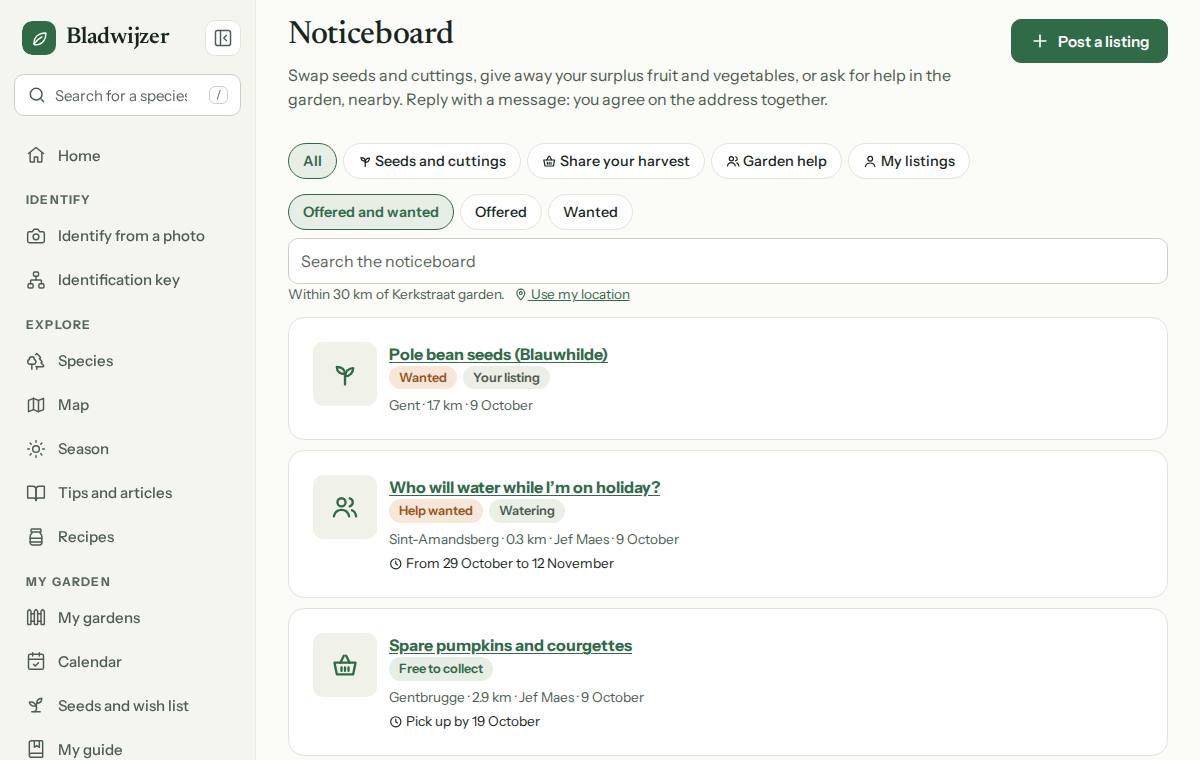
Browsing listings
- If you have a garden on the map, you see listings within 30 km of your garden. With Use my location you search from where you are now.
- Choose Seeds and cuttings, Share your harvest or Garden help, Offered or Wanted, or search for a word (e.g. tomato).
- Each listing shows the town and the distance. Tap it for the description and photos.
Posting a listing
- Choose Post a listing.
- Choose I’m offering or I’m looking for, and give it a title (e.g. Climbing bean seeds). If you like, add how many, from which year and what you’d like in return, and up to 4 photos.
- Enter your town or neighbourhood and choose roughly where: Search, one of your gardens, or My location.
- Choose Post a listing at the bottom.
Seeds from My seeds go straight onto the noticeboard with Swap: the title and year are already filled in.
It’s a match
Choose Seeds and cuttings: at the top you’ll find It’s a match. Bladwijzer puts your wish list and your seeds next to what’s up for swapping nearby (within 25 km by default):
- What you’re looking for: for each plant on your wish list, the listings offering it, and who has it in their stock (only people who share it themselves). Choose Reply on a listing, or Ask on the noticeboard: a Wanted: … seeds listing is ready straight away.
- What you have to spare: for each packet of your seeds, the listings looking for it, and who has it on their wish list (again only people who share it). With Offer on the noticeboard, a … seeds listing is ready.
Bladwijzer recognises the plant from the crop of your packet, or from the name in the listing (e.g. marigold seeds). A listing posted with Swap from your seeds or from a match already knows the plant. Looking for seeds of a vegetable, herb or flower? With Look for seeds you put the crop on your wish list.
Swap settings
With Swap settings (also under Account › Nearby) you choose what others see. Everything is off by default.
- Show my seed stock for swapping nearby: someone nearby looking for what you have sees only those seeds (name, variety and year), your name, your town and the distance to the nearest kilometre. Not how much you have, your notes or exactly where you live.
- Show my wish list for swapping nearby: someone nearby with seeds of what you want sees that you’re looking for it.
- A notification when there’s a match: when someone nearby posts a listing offering something on your wish list, or looking for something among your seeds.
- Where do you swap? and Within what distance? (5, 10, 25 or 50 km). Others only see the town you enter.
Even without sharing anything, you see the listings and the stock of people who do share. People you blocked, or who blocked you, don’t see you and you don’t see them.
Good to know
Others only see the town and the distance, rounded to about a kilometre: never your address or the exact location of your garden.
Sharing your harvest
Under Type of listing, choose Share your harvest, then I’m giving away or I’m looking for (e.g. apples for juicing). If you like, add until when it can be collected (Pick up by): the listing stays in the list until that day. Without a date, it stays for 14 days.
From your vegetable garden it’s quicker: for a crop you’re harvesting, the basket (Share your harvest) posts it straight away.
Harvest for a food bank or community restaurant
Food banks, community restaurants, social supermarkets and schools ask for harvest on the noticeboard. A Bladwijzer administrator has confirmed their account as an organisation: their listings have a badge (e.g. ✓ Food bank) and appear separately at the top of Share your harvest, under Food banks and community restaurants asking for harvest, saying whether they collect it or you bring it.
- Do you have a vegetable garden within 10 km, or do you give away harvest on the noticeboard yourself? Then you get a notification when an organisation nearby asks for harvest. In the weekly neighbourhood email it appears under It’s a match.
- Giving away harvest? You can set it aside for a food bank, community restaurant or other organisation: tick it in the listing. Only a confirmed organisation can then reply, and organisations within 25 km get a notification.
Are you such an organisation yourself? Request the label under Account › Nearby. Once it’s confirmed, you choose under Ask for harvest whether you collect it or gardeners bring it.
Garden help
Under Type of listing, choose Garden help, then I need help or I’m happy to help. Choose with what (Watering, Pruning, Heavy work, Harvest or Something else) and, if you like, the period (From and To). The listing stays in the list until the last day; without a date, for 30 days. For Garden help you can also filter the list by type of help.
Going on holiday? Under To do in your garden, when plants need water, Find someone to water prepares the listing for you. If you want the helper to see when which plant needs water, share your garden with them as a participant.
Replying and meeting up
Interested? Choose Reply and write a message. Only the person who posted the listing sees it, and they get a notification (by email too, if they turned that on). Their reply reaches you as a notification, and so on. You agree where and when to swap in the messages. You only share your address or phone number if you want to.
Your own listing shows all conversations, per person. Under My listings you also see how many new messages there are.
Closing, extending and deleting
- Close: swapped or all gone? The listing disappears from the list. People who already had a conversation with you can still reply; new replies are no longer possible. With Reopen it’s listed again.
- A listing stays in the list for 60 days (harvest: 14 days, help: 30 days, or until the last day you chose). Extend starts that period again, from today.
- Delete removes the listing, with its photos and all messages.
You can have up to 20 open listings at a time.
Reporting a problem
Is a listing inappropriate, advertising, or does it look like a scam? Choose Report at the bottom of the listing. The administrator checks it and deletes it if it doesn’t belong here. The administrator doesn’t read your messages.
Don’t want to see or hear from someone any more? Choose Block next to Report (or, on your own listing, next to the conversation). You then no longer see each other’s listings and that person can’t send you messages; see Blocking, suspensions and new accounts.
Tip
Want the new listings near you in your inbox every week? Turn on the weekly neighbourhood email.
Updated on 2026-10-09