
Manual › Getting started
Logging in, passkeys and two-step verification
Logging in with your username or email address, with Google or Apple, with a passkey or a link by email, choosing a new password if you’ve forgotten it, and securing your account with an authenticator app.
Logging in
Choose Log in and enter your username or email address and your password. You stay logged in on that device for 60 days, until you log out under Account.
Want to see what you’re typing? Tap the eye in the password field (Show password), and tap it again to hide it (Hide password). The eye is in every password field: when you log in, sign up, choose a new password and under Account. When you submit the form, the password is hidden again straight away.
Good to know
After ten failed attempts on your account, you have to wait 15 minutes. This stops anyone from guessing your password. In the meantime, you can still log in with a link by email or a passkey.
Logging in with Google or Apple
Do you see Continue with Google or Continue with Apple on the page for logging in or creating an account? Then you log in with your Google or Apple account, without a separate password for Bladwijzer. Bladwijzer only receives your name and email address from the service.
- No account yet? Bladwijzer creates one straight away, with your name and the email address from Google or Apple. That address is already confirmed, you get the welcome email and you land in My gardens. We choose a username for you: you can change it under Account. You turn on the newsletter and Garden jobs this month yourself under Notifications and email preferences.
- Already have an account with the same email address? If that address is confirmed, Bladwijzer links Google or Apple to that account and you get an email to confirm it. If it isn’t confirmed yet, first log in with your password, then link the service under Account (see below). That way, nobody can take over your account with a different one.
- With Apple you can choose Hide My Email. Apple then passes on a relay address (
…@privaterelay.appleid.com), and Bladwijzer creates a new account with that address. Emails from Bladwijzer reach you through Apple. - With two-step verification, Bladwijzer still asks for your code afterwards.
Linking and unlinking
Under Account › Log in with Google or Apple you can see which service is linked, and with which address.
- Link: you log in with Google or Apple, and from then on you can also log in with it. You get an email to confirm it.
- Unlink: you no longer log in with that service. You also get an email. If you don’t have a password or another service yet, choose a password first: otherwise you can no longer log in.
Choosing a password
If you created your account with Google or Apple, you don’t have a password yet. You need one to log in with your email address, and to confirm important changes, such as adding a passkey, turning on two-step verification or deleting your account. Choose one under Account › Choose a password: we won’t ask for a current password. Forgotten password works too.
Logging in with a passkey
With a passkey you log in with your fingerprint, your face or your device’s PIN, without a password. A passkey only works on Bladwijzer: a fake site made to look like Bladwijzer can’t use it. Your phone, your computer or your password manager (iCloud Keychain, Google Password Manager, Windows Hello, 1Password, Bitwarden…) stores it for you.
Creating a passkey
- Log in as usual and go to Account › Passkeys › Add a passkey.
- Confirm your password (and, if you use two-step verification, enter a code as well).
- Your device asks for your fingerprint, face or PIN, or lets you choose where to store the passkey.
You’ll get an email to confirm. If you store your passkeys in iCloud Keychain or Google Password Manager, they’re available on all your devices straight away (synced). You can create more than one, for example one on your phone and one on your work computer.
Logging in with your passkey
On the login page, choose Log in with a passkey. Or tap in the username field: many browsers offer your passkey right there. You don’t need to fill in your username or password.
Tip
On a computer that doesn’t have your passkey? Under Log in with a passkey, choose the option to use another device: you then scan a QR code with the phone that holds your passkey.
With two-step verification, a passkey covers both steps at once: your device confirms that it’s really you. Only a security key without a PIN will still ask for the code from your app afterwards.
Deleting or renaming a passkey
Under Account › Passkeys you’ll see each passkey with the date you last used it. Use Name to give it a name you’ll recognise (e.g. iPhone), and the bin icon to delete it. Then remove it from your password manager as well. Lost your device? Delete the passkey from another device, or ask the administrator for help.
Logging in with a link by email
No password to hand? On the login page, choose Send me a sign-in link, enter your email address and choose Send the link. You’ll get an email with a button to log in.
- The link works for 15 minutes, and only once, on the device where you open it.
- It’s only sent to a confirmed email address.
- If you use two-step verification, Bladwijzer will then ask for your code as well.
Forgotten password
- On the login page, choose Forgotten your password?.
- Enter your username or email address and choose Send link.
- You’ll get an email with a link. It works for one hour, and only once.
- Choose a new password (enter it twice). You’re logged in straight away, and logged out on your other devices.
No email address on your account? Use the contact form to ask the administrator for a password reset link: it works for 24 hours.
Two-step verification
With two-step verification, after your password we also ask for a six-digit code from an app on your phone. Anyone who only knows your password then can’t log in. We strongly recommend it for administrators.
You’ll need an authenticator app, such as Microsoft Authenticator, Google Authenticator or 1Password.
Turning it on
- Go to Account › Two-step verification › Turn on and confirm your password.
- Scan the QR code with your app (Add account or Scan QR code). If you’re on the phone itself, tap the link or type in the key.
- Enter the six-digit code from the app.
- You’ll get ten recovery codes. Keep them somewhere safe, for example in your password manager or printed out. You’ll only see them once.
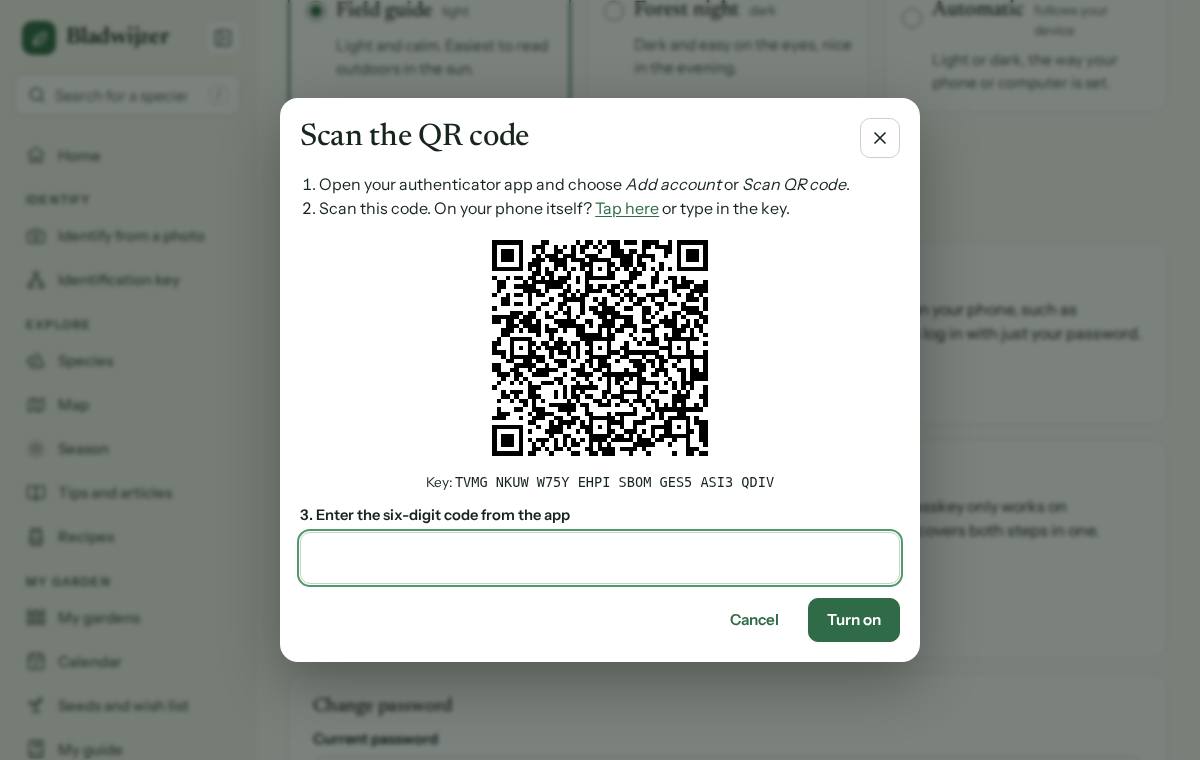
Once it’s on, you’re logged out on your other devices and you’ll get an email to confirm.
Logging in with a code
After your password, Bladwijzer asks for the code from your app. Each code works once, for about 30 seconds.
Tip
Code not accepted? Check that the time on your phone is set automatically, and use the latest code.
Lost your phone?
- When logging in, choose Phone not to hand? and use a recovery code. Each recovery code works once.
- Afterwards, create new recovery codes under Account, or turn two-step verification off and on again with your new phone.
- No recovery codes left? Ask the administrator to turn off two-step verification for you. This also removes your passkeys.
Turning it off, or new recovery codes
Under Account › Two-step verification, choose Turn off or New recovery codes. We’ll ask for your password and a code (or a recovery code).
Updated on 2026-10-11