
Manual › Your garden
Hiring and lending equipment
Hire or borrow garden equipment from people nearby for free, or put your own online: searching, booking, accepting or declining, messages, reminders, the agenda and reviews, and managing your own listings.
Under Equipment (in the menu under Nearby) you borrow or hire garden equipment from people nearby: a shredder, a ladder, a trailer, a chainsaw or a mini digger. If you have equipment you don’t use every day, you put it online to hire out or lend for free. You need an account: without one, you can’t see what’s on offer.
Good to know
You see what is available nearby, at what price and when it is free, and you book the days that suit you. Payment and the deposit are always settled when you collect it, not in Bladwijzer.
Finding equipment
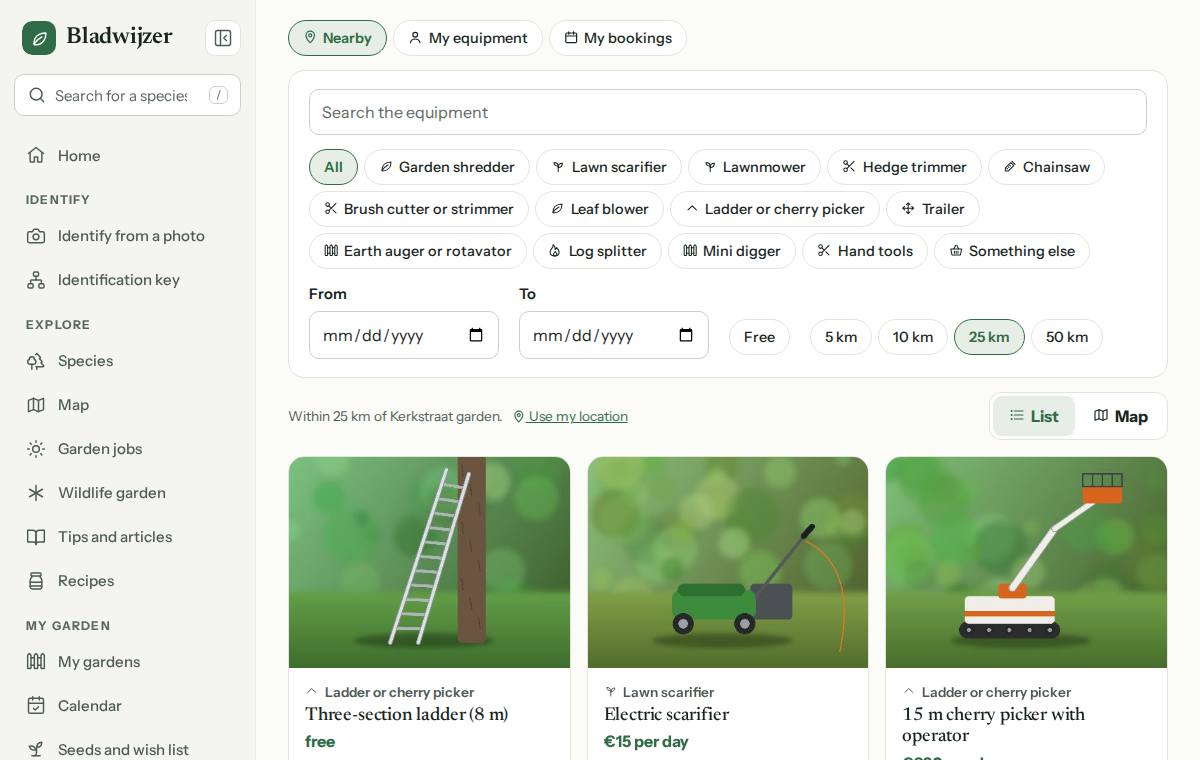
- If you have a garden on the map, you see what’s on offer within 25 km of your garden. With Use my location you search from where you are now. Under Distance, choose how far to search: 5, 10, 25 or 50 km.
- Search for a word (e.g. shredder), or choose a type: garden shredder, lawn scarifier, lawnmower, hedge trimmer, chainsaw, brush cutter or strimmer, leaf blower, ladder or cherry picker, trailer, earth auger or rotavator, log splitter, mini digger, hand tools or something else.
- Choose Free to see only what is lent for free.
- Do you know when you need it? Fill in From and To: you then only see equipment that is free on all those days. If you only fill in From, you search for that one day.
- Each card shows the photo, the title, the price (free, or e.g. €25 per day · weekend €40), the place and the distance, and who is offering it. If that is a professional, Professional is shown.
Under My equipment you only see your own listings, including those that are paused.
The equipment on a map
Above the list is a switch List | Map. Choose Map to see what’s on offer on a map, with the same filters as the list. Each item is at the place the owner gave (accurate to about a kilometre), and items at the same spot share one marker with a number. Tap a marker to see the photo, the title and the price, and choose View to open the page for the equipment. The circle shows the distance you chose, around your garden or your location, and the map zooms to fit. The address remembers your choice, so you can also share the map or open it again.
Viewing an item
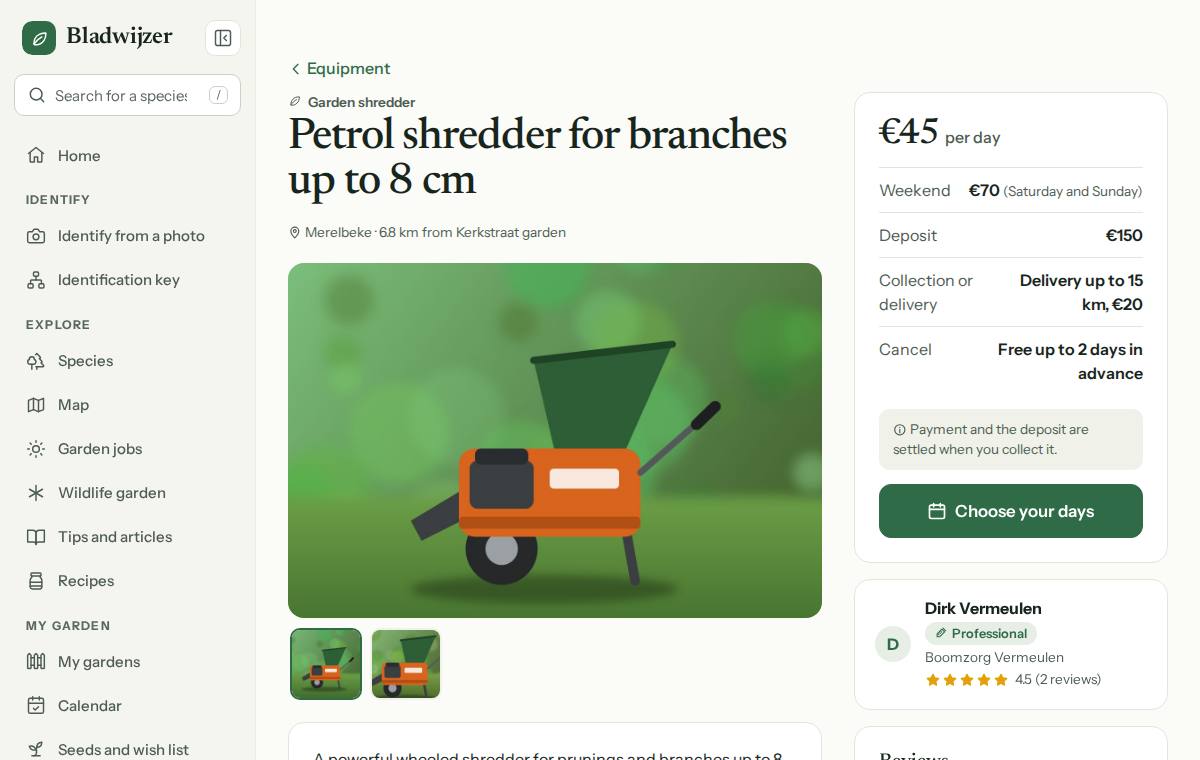
Tap a card to open the page for the equipment:
- the photos (tap a photo to enlarge it) and the description;
- the price per day, the weekend rate (for Saturday and Sunday together) and the deposit;
- whether the owner also delivers it, up to how many kilometres and at what cost, or whether you collect it;
- With operator if the professional operates it themselves, e.g. a cherry picker with a driver;
- up to how many days in advance you can cancel for free;
- the owner’s conditions;
- the availability: two months, with the booked days marked. With the arrows you look a few months further ahead;
- the owner, with stars and the number of reviews.
Does the equipment not belong here, or is it misleading or dangerous? Choose Report under the owner and, if you like, give a reason. The administrator checks it and can hide it; the owner then gets a notification.
Booking
- Open the equipment and tap Choose your days. In the Availability calendar, tap the first and the last day of your booking; for a single day, just tap that day. Prefer typing dates? Fill in From and To (inclusive).
- You immediately see the number of days, the price, the deposit and the date until which you can cancel for free. If the owner also delivers, tick Delivery: the delivery cost is added to the price.
- If you like, write a message to the owner (e.g. what time you will collect it) and choose Request booking. You land on the page of your booking. If it doesn’t work, the reason stays on screen, e.g. that someone has just booked those days.
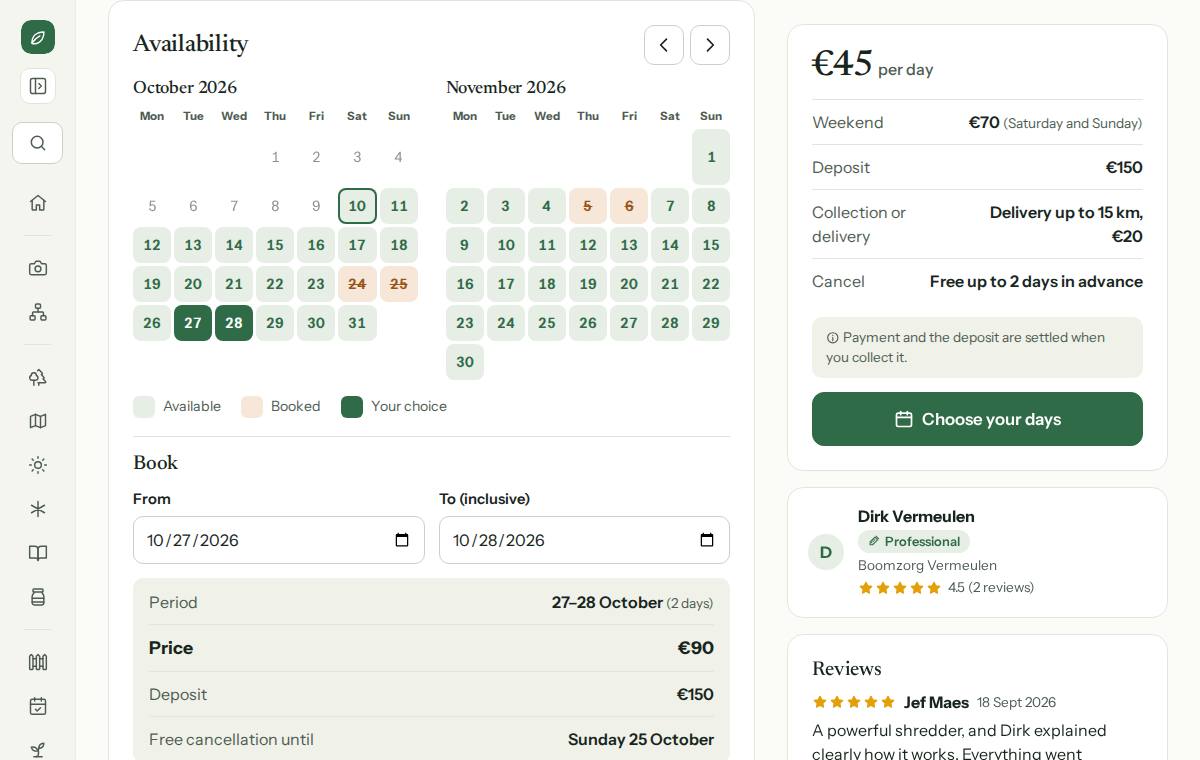
You can’t choose booked days, or a period that runs over them. A booking lasts 30 days at most and starts six months ahead at most. You can’t book your own equipment, or equipment that is paused.
Accepting or declining
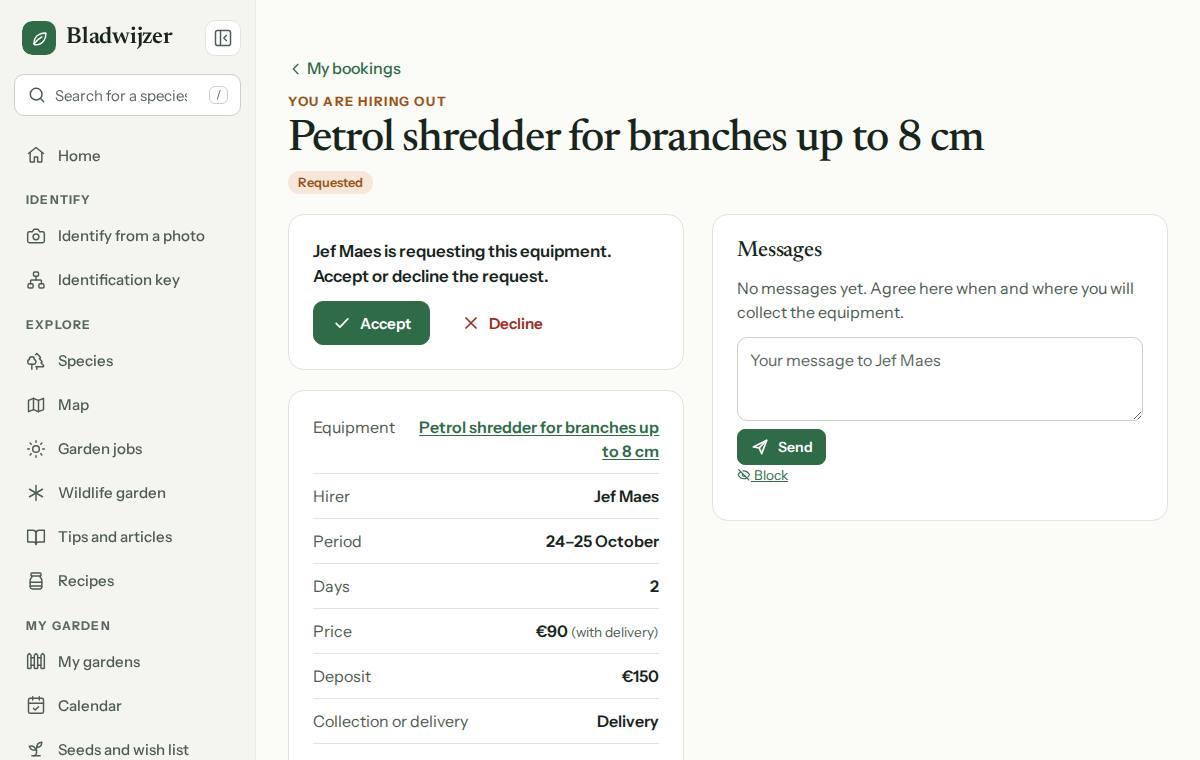
The owner gets a notification (and an email or push notification, depending on their settings) and chooses Accept or Decline. When declining, you give a short reason, which the hirer sees. The days are booked from the moment of the request; if it is declined or withdrawn, they are free again. If the owner doesn’t answer before the first day of the booking has passed, the request expires and the hirer gets a notification.
Collection and return
Both get a reminder the day before collection and the day before the return. Handing the equipment over? Then choose Mark as collected on the booking page, and later Mark as returned. The owner does this; the hirer gets a notification each time. Collection can be marked from the day before the booking.
Cancelling
- The hirer withdraws a request with Withdraw request, and cancels an accepted booking with Cancel. That is free until the deadline the owner chose; it is shown on the booking under Free cancellation until. After that, send the owner a message.
- The owner can cancel an accepted booking and gives a short reason.
You confirm every cancellation once more. The other person gets a notification.
Messages
The booking page holds the conversation between hirer and owner, like on the notice board. Agree there when and where you will collect the equipment. A new message arrives as a notification, and under My bookings you see the number of unread messages. You only give your address or phone number if you want to.
My bookings
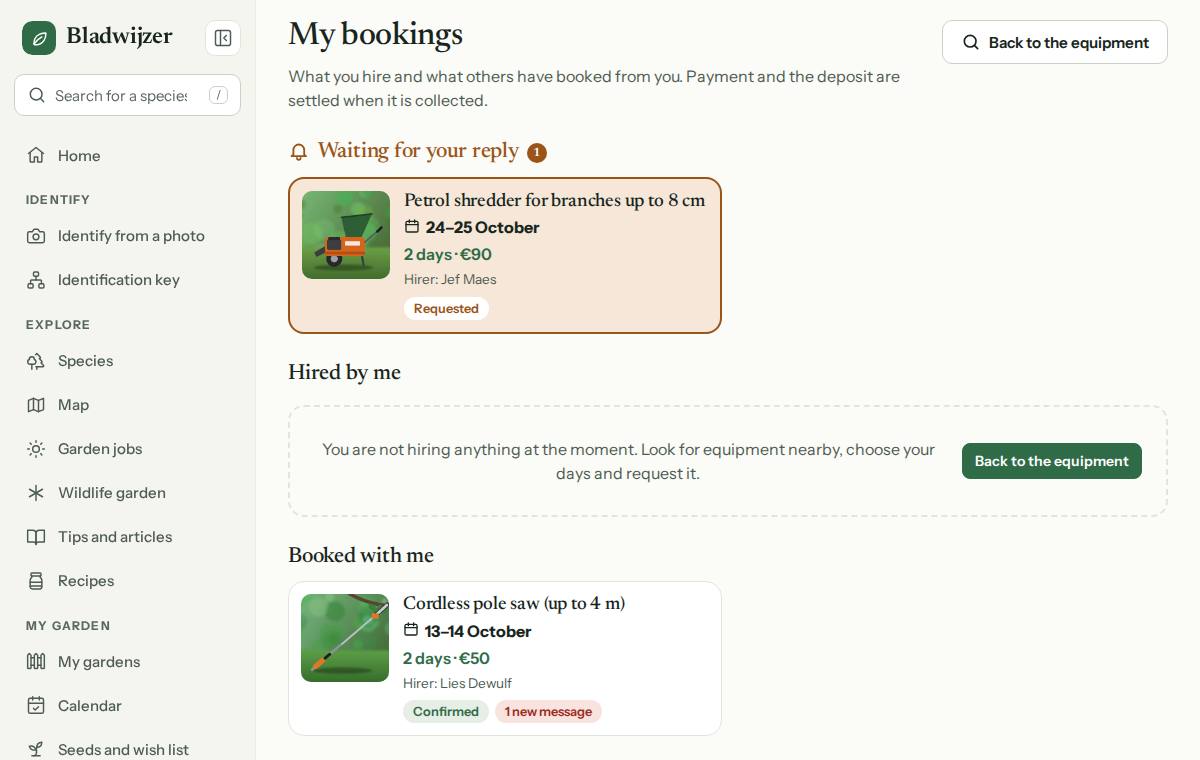
Under Equipment, choose My bookings (with the number of requests waiting for your answer), or open your profile: it shows the number of current bookings. The page has two parts: Hired by me and Booked with me. Requests waiting for your answer are at the top and stand out. For each booking you see the photo, the period, the price, the status and the number of unread messages. With Past bookings too you also see what is over, declined or cancelled (the last six months).
In your agenda
An accepted booking appears in your agenda under Equipment (Hired: … or Hired out to …: …), until it has been returned. It is also in your agenda link (iCal), as whole days, so it shows up in Google Calendar, Apple Calendar or Outlook: see the agenda.
Reviews
After the return, hirer and owner give each other 1 to 5 stars, with a text if they like. You do this on the booking page; afterwards you see your own review and the other person’s. What hirers write about an owner appears on the equipment page under the owner (the latest 5).
Offering equipment
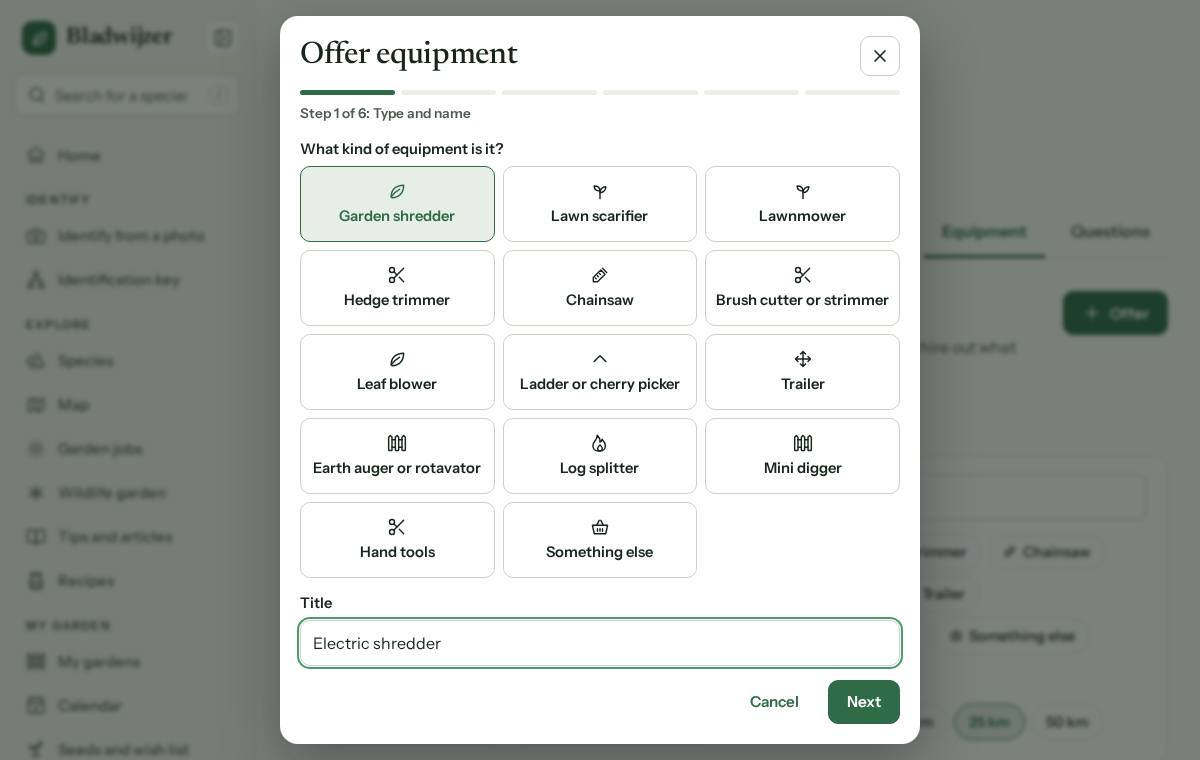
- Choose Offer.
- Type and name: choose what kind of equipment it is and give it a title (e.g. Electric shredder).
- Description and photos: write what it can do and what you provide, and add up to 6 photos.
- Place: enter your town or neighbourhood and choose roughly where, with Search, one of your gardens or My location.
- Price: choose Hire out with a price per day and, if you like, a weekend rate, or Lend for free. A deposit is always optional.
- Delivery and cancellation: do you deliver it too, up to how many km and at what cost? Up to how many days in advance can the hirer cancel for free (0 is up to the day itself)? If you are a professional, you also choose whether it comes With operator.
- Conditions: e.g. return it clean, with a full tank, only with safety glasses and gloves.
- Choose Put online at the bottom. With Previous you go back a step; until you save, nothing is online.
Good to know
Others only see the place and the distance, rounded to about a kilometre: never your address or the exact location. You agree your address with whoever hires it.
You can have at most 50 items online at the same time.
Managing your equipment
Open your equipment via My equipment. On its page you choose:
- Change: the same steps as when offering, with everything already filled in.
- Pause: it then no longer appears in the list for the neighbourhood, but you keep everything. With Resume it appears again.
- Delete: removes the equipment, with its photos. If there are still bookings, that isn’t possible: pause it, or cancel the bookings first.
Blocking days
Need it yourself, or is it broken? Then block days in the calendar, so nobody searches for or chooses them.
- In Availability, tap the first day, and then the last day of the period. To block a single day, tap it first and then choose Block below.
- If you like, write a reason, and choose Block.
- Want to make a day available again? Tap the blocked day, or choose Release under Booked periods.
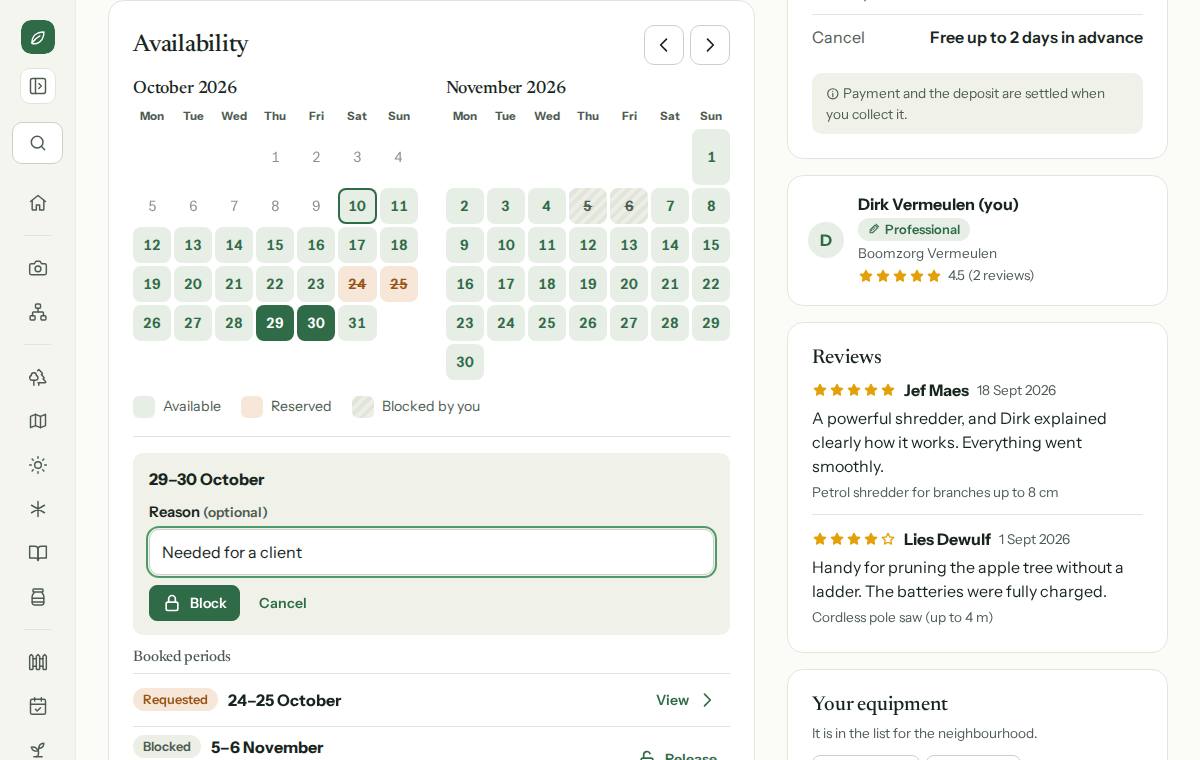
Days that are already hired out can’t be blocked. Under Booked periods, a booking has a View link that takes you to the booking.
Important
Bladwijzer brings people together but is not a party to the hire: the hirer and the owner settle payment, deposit, damage and insurance between them. Use machines only with the right protective equipment and as the instructions say. For a chainsaw or a cherry picker, training may be compulsory. You can read more in the terms of use.
Tip
Want the new equipment near you in your inbox every week? Turn on the weekly neighbourhood email.
Updated on 2026-10-09