
Manual › Your garden
Open gardens and garden trails
Visiting gardens on an open garden day, signing up for a time slot, opening your own garden and creating a trail that links several gardens.
Under Open gardens (in the menu under Nearby) you find gardens you can visit on an open garden day, on a map and in a list, and garden trails that link several open gardens on the same day. Anyone can look at them; to sign up or open your own garden, you need an account.
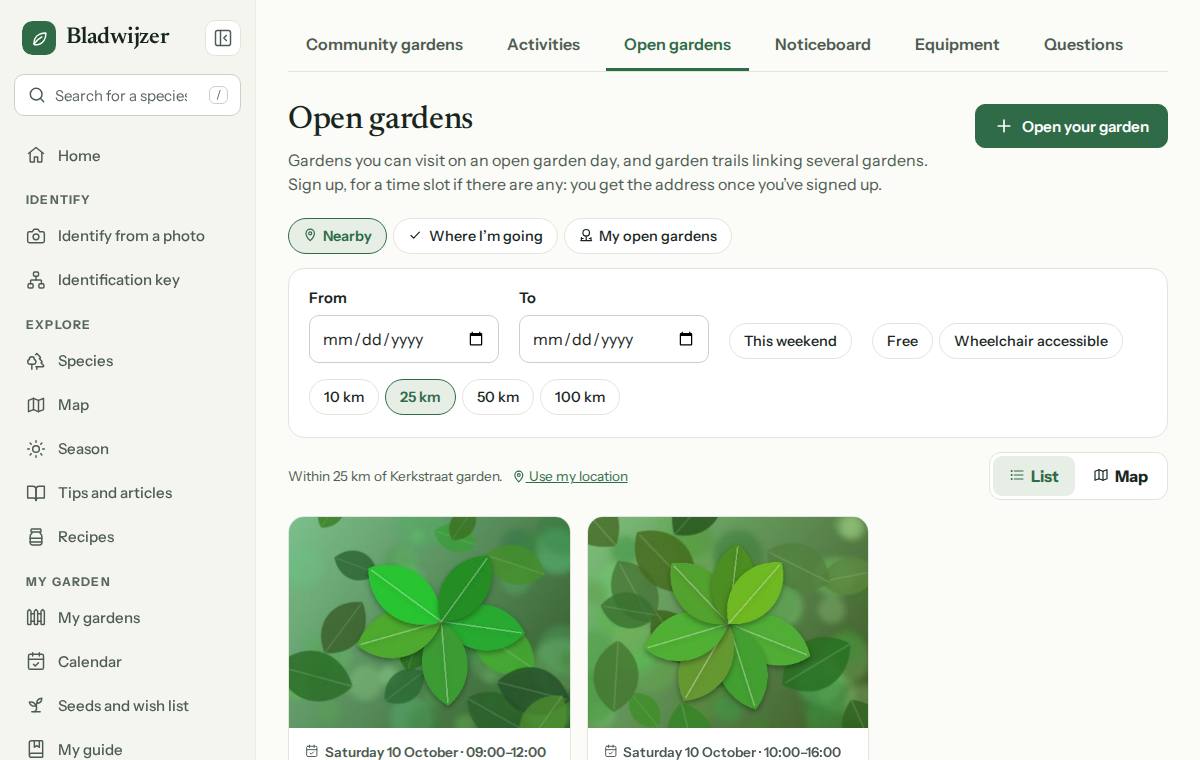
Finding an open garden
- If you have a garden on the map, you see the open gardens within 25 km of your garden. Choose another distance (10, 25, 50 or 100 km) or Use my location.
- Filter on a period (From and To, or This weekend), on Free and on Wheelchair accessible.
- List and Map switch the view. On the map a garden is shown in a circle: the location is rounded to about a kilometre, and the garden is somewhere inside that circle.
- Where I’m going shows what you’ve signed up for, My open gardens your own open gardens.
Tap an open garden for the photos, the description, what there is to see, the accessibility, the contribution (free, or a voluntary contribution, possibly for a good cause) and the open days with their times and time slots.
Signing up
- Choose Sign up for an open day.
- If the day has time slots, choose one. Each time slot shows how many places are still free; you can’t choose a fully booked slot.
- Enter how many of you are coming (up to 10) and, if you like, a note for the owner, then choose Sign up.
Once you’ve signed up, you see the address or meeting point and the exact location on the map, with a link to the route in Google Maps. You get a confirmation (a notification, and an email if email notifications are on) with the address. The morning before and on the day itself, the open garden is in your morning reminder, and it’s in your calendar and the calendar feed, with your time slot and the address.
Can’t make it after all? Choose Cancel sign-up: your place becomes free and the owner is notified. If the owner changes the times or the address, or the day is cancelled, you get a notification.
Opening your garden
You open one of your own gardens (not an indoor one). If you don’t have one yet, create one first; it doesn’t have to be on the map.
- Choose Open your garden and pick the garden.
- Give a title, a short description and what there is to see.
- Add photos: new ones, or with Choose photos from your garden the photos you already added to your plants or the logbook.
- Tick the accessibility (wheelchair, pushchair, toilet, dogs, parking, bike parking, bus or tram) and add a note if you like.
- Choose Free or Voluntary contribution, possibly for a good cause.
- Under Where? you give two things:
- an approximate location that everyone sees, such as your town or neighbourhood (Ghent – Sint-Amandsberg), without a street or house number;
- the address or a meeting point that only people who have signed up can see. Find it on the map, or choose Use my garden’s location.
- Add one or more open days: the day, from and to, and if you like time slots (every 15 to 120 minutes) with a maximum number of visitors per time slot. Without time slots, visitors come whenever they like, with an optional maximum for the whole day.
- Choose Open up.
Important
The centre of your garden is never shown automatically. People who haven’t signed up only see the approximate location you enter yourself and a position on the map rounded to about a kilometre.
Who’s coming, and changing or cancelling days
For each open day you see Who’s coming: the names, the time slot, how many people and their note. Only you see that list. You get a notification for every new sign-up and when someone cancels.
- Add a day: another open day (up to 14 still to come).
- Change a day: other times or another maximum. Existing sign-ups must still fit: once people have signed up, you can no longer change the time slots or set a maximum below the number of visitors already signed up. If the times change, the people who signed up are notified.
- Cancel the day: with a reason (e.g. a storm). The people who signed up get a notification with your reason. A day without sign-ups simply disappears.
- Change at the top: the description, photos, accessibility, contribution and location. Visitors who signed up are told about a new address.
- Delete: the open garden disappears; anyone signed up for a coming day is told it’s cancelled.
Garden trails
A garden trail is a named series of open gardens on the same day or days, e.g. Ghent South open gardens, 14 June. You find them at the bottom of Open gardens. On a trail’s page the gardens are numbered on a map, in a sensible order: first the garden that opens earliest, then the nearest one each time (as the crow flies). With Route in Google Maps or Route in Apple Maps you open the trail with the stops in between. Until you sign up, the trail uses the rounded locations and is approximate; you sign up for each garden separately.
You can create a garden trail if you open your own garden (or as an administrator):
- Choose Create a garden trail at the bottom of Open gardens.
- Give it a name and, if you like, a description, and choose the day or days (up to four).
- Tick the open gardens that are open on one of those days (within 50 km of your open garden), at least two.
- Choose Create.
The owner of a garden that’s added to a trail is notified and can take it out again from the trail or their open garden (Remove my garden from this trail); the person who created the trail is then told.
Reporting and blocking
Does an open garden or a garden trail not belong here, is it advertising or misleading? Choose Report: the administrator checks it and can hide the open garden or delete the garden trail. With Block you no longer see someone’s open gardens and garden trails, and they no longer see yours (see Blocking, suspensions and new accounts). For the first few days, a new account can open at most one garden a day, without links.
Tip
Upcoming open gardens are also in the weekly neighbourhood email: the new ones, and those with an open day in the week that follows.
Updated on 2026-10-09