
Manual › Your garden
Community gardens
Looking after a neighbourhood, school or allotment garden together: a link to join, findable nearby, joining as a participant, updates, problems and tasks.
In a community garden (a neighbourhood garden, school garden or allotment) everyone joins in: updates with photos, reporting problems, marking what’s been done. That way everyone can see what has happened and what still needs doing.
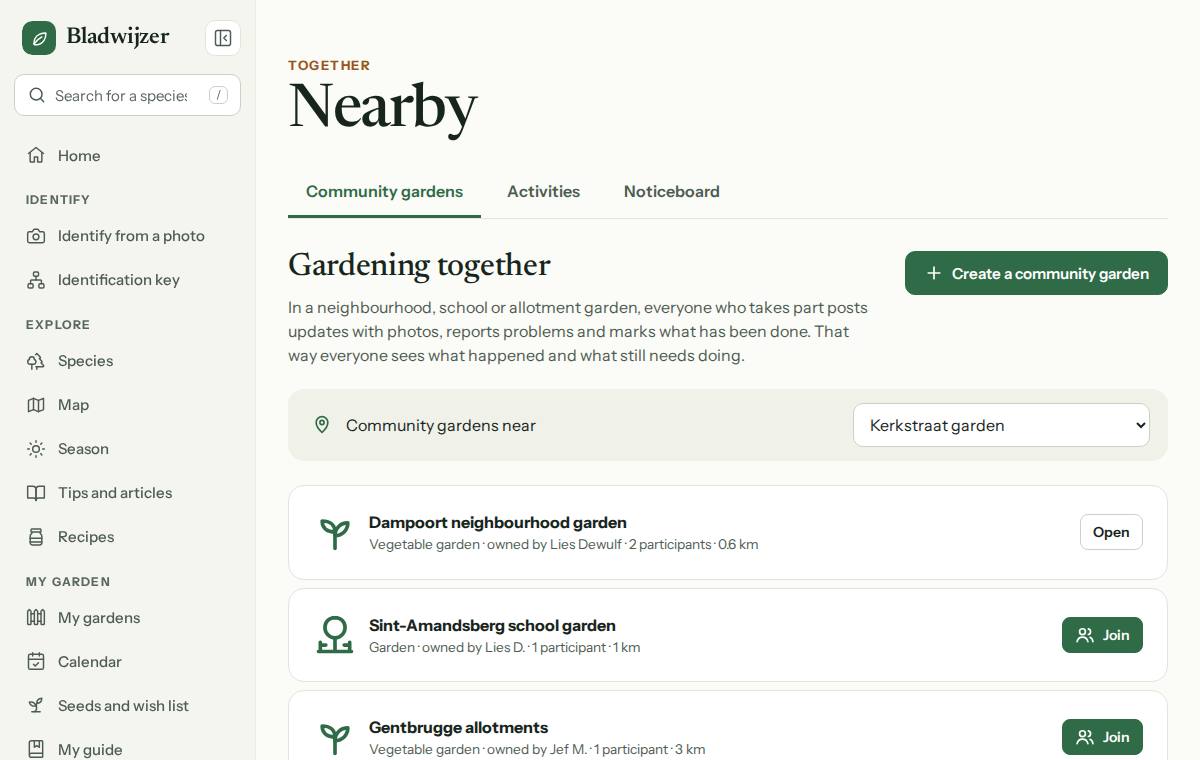
Creating a community garden
- Under My gardens, choose New garden, choose the kind (garden, vegetable garden or indoors) and tick Community garden. Or, under Community gardens, choose Create a community garden.
- To turn a garden you already have into a community garden, open the garden’s Settings section and go to Reminders and sharing › Community garden.
Only the owner can make a garden a community garden, and turn it off again.
Letting people join
Under Reminders and sharing you’ll find the link to join.
- Choose Copy link and share it: via WhatsApp, an email, the school newsletter…
- Anyone who opens the link and logs in (or creates a free account) chooses Join and is a participant straight away.
- You get a notification when someone joins.
Has the link ended up somewhere it shouldn’t be? Choose New link: the old one stops working. Anyone who has already joined stays in.
You can also invite someone by email with Share, with the Participant role or another role. That’s also where you can see who has joined, and revoke someone’s access (see Sharing a garden).
Findable nearby
Tick Findable nearby: your garden then appears under Community gardens, and people in the area can join without a link.
- Others see the name of the garden, your first name with the initial of your surname, the number of participants and the distance. No address and no map.
- The garden needs a location. A garden on the map already has one (your plot). For a vegetable garden or indoors, choose Use my location, ideally while you’re in the garden.
Finding a garden and joining
- Go to Community gardens (in the menu under Nearby).
- Under Community gardens near, choose one of your gardens, or My location: you’ll see the community gardens within 50 km, nearest first. Everywhere shows them all.
- Choose Join. The garden then appears under My gardens, in Shared with me.
In that garden, turn on Remind me what needs doing: what needs doing then appears in your calendar and in your morning reminder. For a shared garden, reminders start off turned off.
Don’t want to take part any more? At the top of the garden, choose ⋯ › Leave garden.
What does a participant do?
A participant:
- sees everything: the plants, the beds and crops, To do and the log;
- writes in the log, with photos;
- reports problems and marks them as solved;
- marks watering, tasks and the steps of the vegetable garden plan, and adds tasks;
- requests a job from a professional already linked to the garden, if the owner allows it with Can request jobs (see Sharing a garden); without that, they don’t see the jobs;
- doesn’t change the plants themselves: that’s up to the owner and anyone with the Edit role.
Tip
Should a few regular helpers also be able to add plants or change the plan? Give them the Edit role via Share.
Work days
Pruning, clearing leaves or getting the beds ready together? Every garden you share (including a garden shared with others) has a Work days section.
- Choose Propose a work day. Anyone who can write in the log can do this, a participant too.
- Fill in what you’ll do (e.g. Trimming hedges and clearing leaves), the day, the time and anything everyone should bring.
- Choose Propose. The others in the garden get a notification.
For each work day choose I’m coming, Maybe or I can’t. You see who’s coming; whoever proposed it gets a notification when someone says yes.
- Whoever proposed the work day or the owner can edit or cancel it. Everyone who said yes or maybe gets a notification if the time or day changes, or if it’s cancelled.
- On the morning of the work day and the day before, it’s in your reminder every morning, unless you said no.
- It’s in your agenda and in the calendar feed for Google, Apple and Outlook, with the time and a reminder two hours before.
- After the work day choose Write the report: what got done, with photos. The report goes into the log.
Tool library
A community garden often shares tools: spades, wheelbarrows, a lawnmower, a shredder. In the garden, under Together and sustainable, you’ll find the Tool library.
- Anyone who can edit the garden (the owner, or anyone with the Edit role) chooses Add equipment: the same steps as offering equipment, but the equipment belongs to the garden.
- The garden’s members borrow it for free, without a deposit: open the item, choose the days and it goes straight onto the lending list (who has what and when). They don’t have to wait for an answer.
- By default only members see the equipment. Tick Also for non-members and others will find it under Equipment nearby and hire or borrow it at the price shown; their request goes to whoever added the equipment.
Updated on 2026-10-07