
Manual › Your garden
Creating a garden and importing your plot
Creating a garden, a vegetable garden or your houseplants, importing your plot from the land registry (Belgium and the Netherlands), drawing an outline yourself or importing a GeoJSON or KML file.
Under My gardens you can create one or more gardens: your own garden, an allotment, your parents’ garden, your vegetable garden or your houseplants.
Creating a garden
- Choose New garden.
- Under What do you want to keep track of?, choose one of the three kinds: Garden, Vegetable garden or Indoors.
- Give it a name. Looking after the garden together with others? Then tick Community garden (see below).
- Choose Create.
For a Garden on the map:
- Search for your address in the search box above the map (if the garden already has plants or a plot, it’s behind Address), or zoom in until you can see your garden. Choose the aerial photo as the background to see it more clearly.
- Mark out your plot in one of the three ways below.
Getting started: your plants first or your garden first
At the top of a new garden you’ll find Getting started with your garden, with three steps. You choose the order, and you can skip any step:
- Add plants: search for your plants by name (Add plant), paste a list (Paste a list), or add houseplants (Indoors) and a vegetable bed (Vegetable garden). They don’t need a spot on the map yet: see Your plants first, the spot later.
- Mark your garden: choose On the map, search for your address and tap your plot. Bladwijzer then also looks up the soil, the sun and the weather.
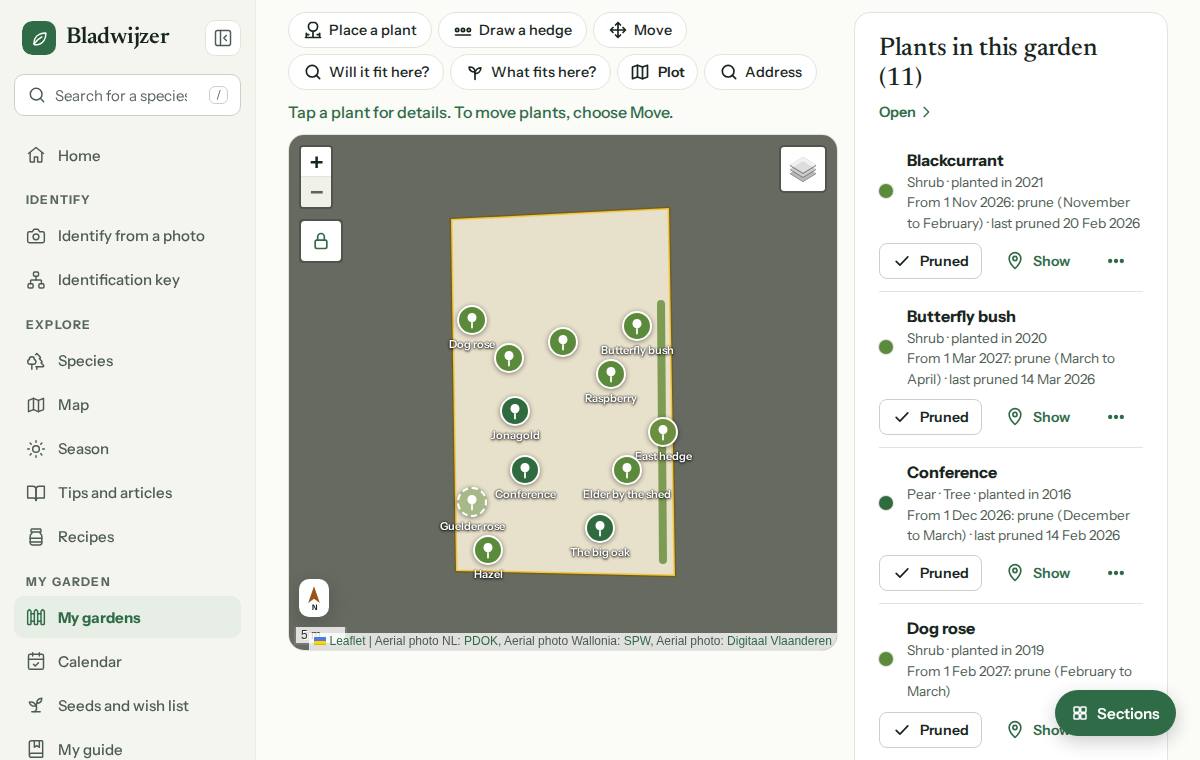
- Put plants on the map (optional): choose Place and tap the map where the plant stands. You then see the shade, the spacing between your plants and what fits.
A finished step gets a tick. When everything is done, or if you choose Hide, Getting started with your garden disappears.
Three kinds of garden
| Kind | What | More |
|---|---|---|
| Garden | Your plot on the map, with trees, shrubs, hedges and plants on the aerial photo, a pruning schedule and planting advice. | This page and Placing plants |
| Vegetable garden | Beds with vegetables, herbs and flowers, with a plan for sowing, planting out and harvesting. No map. | A vegetable garden |
| Indoors | Your houseplants, room by room, with reminders to water them. No map. | Houseplants |
Every kind has To do, a log with photos and problems, Good for wildlife and Reminders and sharing (see To do, log and problems). You can share any garden.
One garden: outdoors, the vegetable garden and indoors
Your Garden is your whole plot, divided into three parts. All three are on the same page, under Your plants:
- Outdoors: your trees, shrubs, hedges and plants, on the map (or not on the map yet).
- Vegetable garden: your beds and what grows in them, just like in a separate vegetable garden. You draw a new bed straight onto your plot: tap the corners and choose Done. The bed then shows as a green area on the map; tap it to see what grows there. Later, choose Show on the map or Draw again under the bed. A tray on the windowsill or in the conservatory? Tick Indoors for the bed: it then isn’t on the map, and rain and frost don’t count.
- Indoors: your houseplants room by room, with reminders to water them, just like in Indoors. Your house is on your plot; rain doesn’t count there, and there are no frost warnings.
Everything together, or each part on its own
At the top of your garden, you choose what you see:
- All: outdoors, the vegetable garden and indoors together on one page.
- Garden: only outdoors, with your plants on the map, maintenance, nature and the rest; the beds are then not on the map.
- Vegetable garden: only your beds and crops, with the map (only the beds) and the sun, soil and weather.
- Indoors: only your houseplants, room by room.
The number on each button shows how many plants or crops there are. Bladwijzer remembers your choice for each garden on this device. If you jump to something that isn’t visible in that choice (for example from a notification), you see everything again.
The separate kinds Vegetable garden and Indoors stay: for an allotment elsewhere, or if you only have houseplants. In Indoors too, you can keep a tray of herbs or microgreens, under Vegetable garden.
Your house, the vegetable garden and the greenhouse on the map
- Your house: Bladwijzer finds your house on the map (under Sun and aspect). Tap it and choose Put a plant indoors: the plant goes under Indoors, in the room you choose. If Bladwijzer didn’t find your house, choose Draw your house under Indoors and tap the corners.
- The vegetable garden: under Vegetable garden, choose Vegetable garden on the map and tap the corners of your vegetable garden. Then create beds and a greenhouse in it (Bed or Greenhouse): you draw them straight in their spot. In the greenhouse rain doesn’t count; frost does (an unheated greenhouse can still freeze).
- Zooming in: Vegetable garden on the map zooms in on your vegetable garden, with the name of every bed and the greenhouse. Tap a bed or the greenhouse and choose Add a crop to plant something in it. If you choose Open under Vegetable garden, you see your vegetable garden on its own, with the map zoomed in on it.
Adding a separate vegetable garden or indoors
If you already had a separate Vegetable garden or Indoors, you’ll see Add to this garden in that part of your garden. Everything comes along: plants, beds, crops, tasks, the log, the water butt and the compost. Your houseplants are then under Indoors, the beds under Vegetable garden (draw them on your plot afterwards). The separate garden disappears; invite anyone you shared it with again.
Everything on one page
A Garden sits entirely on one page: at the top your numbers, then the sections in a fixed order, from what needs doing now to the settings, in 7 parts. Each part starts with a large title (e.g. To do, Map and plants, Your site) and shows its sections as cards:
- Today: To do;
- Your plants: the map, the plants in your garden, what is planned and the points to watch;
- Maintenance: the Pruning schedule, the log with problems, and Jobs;
- Sun, soil and weather: sun and aspect, the soil and the weather;
- Nature: the nature score, flowering, Good for wildlife and Popular near you;
- Together and sustainable: rain barrel and compost and, in a community garden, the work days;
- Outline and settings: Plots and outlines and Reminders and sharing.
Below your numbers is one button per part: tap one to jump straight there. Plants shows how many there are; Content next to each part takes you back to the buttons. Once you have scrolled further down, the Sections button at the bottom right shows one button per section, and Back to top. A link from a notification or your calendar (e.g. to the work days) opens the page right at that section.
Going deeper into a section
On the page, a long list only shows its start: the first three points to watch, the first six plants, the pruning schedule for the next three months, the last three log entries. To see everything, choose Show all … below the list, or Open to the right of a section’s title. The section then opens on a screen of its own, with everything in it: for Plants, all plants and what is planned, with the map below; for the log, the older entries too. Back to (your garden’s name) takes you back to that section on the page; Sections at the bottom right takes you straight to another section.
A vegetable garden and Indoor plants work the same way, with your beds or rooms where a garden has the map and the plants.
Popular near you
Which trees, shrubs and plants grow most often in other people’s gardens within 2, 5, 10 or 25 km of your garden, and which vegetables in their vegetable gardens? Handy to see what grows well in your area. What you have in your garden too is marked you have it too. Tap a plant for its page.
This is anonymous: you never see who plants what, or where. We only show plants that at least three people have, and only when there are at least five gardens of other people within that distance. Otherwise, choose a larger distance.
Community garden
A neighbourhood, school or allotment garden where everyone posts updates? Tick Community garden, or turn it on later under Reminders and sharing. You then get a link for people to join, and you can make the garden findable nearby. See Community gardens.
Importing your plot
Above the map you’ll find these three ways under Plot.
| Method | How |
|---|---|
| Import plot | Tap your plot: the boundary comes from the land registry (CadGIS from FPS Finance, the Belgian federal finance service, in Belgium; PDOK in the Netherlands). Tap a neighbouring plot to add it. |
| Draw it yourself | Tap the corners of your garden and choose Done. Use Remove last point to undo a wrong point. |
| File (GeoJSON or KML) | Import a GeoJSON or KML file, for example from Geopunt (the Flemish government’s map portal). Lambert 72, Lambert 2008 and RD (the Belgian and Dutch coordinate systems) are converted automatically. |
Good to know
Land registry boundaries are indicative and are not an official survey.
In the Plots and outlines section you’ll see all the areas with their surface area. Deleting an area doesn’t affect your plants.
The map stays on your garden
Once your plot is in place, the map stays on your garden and you only see your plot: everything around it is darkened. You zoom in (and back out until your whole garden is in view) and choose another layer (aerial photo, map, sun and shade), but you no longer drag the map away by accident. Zoomed in, you only move within your garden. The padlock below the zoom buttons frees the map, and a second tap fixes it again. When you search for an address or draw an outline, the map is freed automatically.
The garden plan as a PDF
At the top of the garden, under ⋯, choose Garden report (PDF). It is an A4 page to print, hand to a landscaper or add to an application. You choose what goes in. Just the plan gives the garden plan:
- the plan: your plot, the buildings and every plant with a number, in the colour of its form (tree, hedge, shrub…), with a north arrow, a scale bar and a legend. Planned plants have a dashed outline;
- the plants and pruning calendar: per number the plant, its form, the year it was planted, when it was last pruned, and in green the months to prune;
- for a vegetable garden the beds and crops, for houseplants the room and how often they need water.
Tick more and it becomes a garden report:
- Info per plant: the species, the family, how to recognise it and, for a garden plant, its site (light, soil, moisture, hardiness);
- Care per plant: when and how to prune, what to watch out for, how often to water and a tip;
- Your notes on each plant;
- the nature score of your garden, per part, with the months in which nothing flowers yet;
- the soil and what is still to do.
All ticks everything. Next time Bladwijzer remembers what you chose.
The plan is a sketch based on your plot and the plants in Bladwijzer, not to a surveyor’s scale. Anyone the garden is shared with can print it. The language is that of the site.
Name, delete, leave
At the top of the garden, under ⋯:
- Rename: rename the garden.
- Delete garden: delete the garden and all its plants (owner only).
- Leave garden: for a garden that has been shared with you.
Next step: placing plants, starting a vegetable garden or adding your houseplants.
Updated on 2026-10-15