
Manual › Identify
Identifying from a photo
Identifying a tree or plant from a photo: how to take a good photo, how to read the suggestions, and how to save the result.
With Photo you can identify a tree, shrub or plant from a photo of a leaf, flower, fruit or the bark.
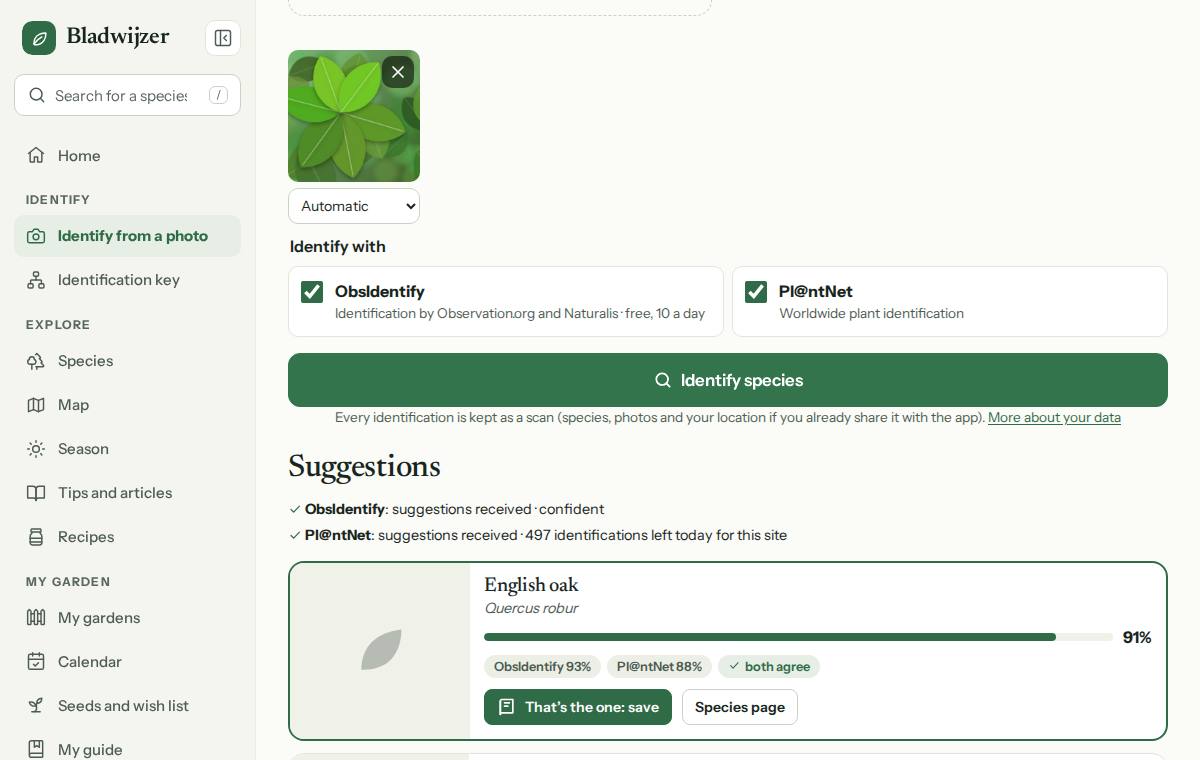
How it works
- Go to Photo. Under What is in your photo?, choose what you are photographing: leaf, flower, fruit, bark or the whole plant (then the identification decides for itself).
- Choose Take a photo or Choose a file, or drag a photo onto the box. You can add up to five photos of the same plant, and change what each one shows.
- Choose Identify species.
- You’ll get suggestions showing how confident the identification is. Tap a suggestion to open its species page, or choose That’s the one: save to add it to your guide.
Taking a good photo
- One leaf or flower in sharp focus, ideally against a plain background.
- Add a second photo of another part: bark, bud, fruit or the whole tree.
- Don’t stand too far away, and make sure it isn’t too dark.
The identification
| Engine | What | Limit |
|---|---|---|
| ObsIdentify (Observation International and Naturalis) | Trained on millions of verified observations from Belgium and the Netherlands | 10 identifications a day (free) |
| Pl@ntNet (if switched on) | Worldwide plant identification | 50 a day per user |
If both suggest the same species, you’ll see both agree.
Watch out
An identification is only ever a suggestion. Compare the features on the species page, and never eat a plant or berry on the strength of an app.
If the identification isn’t certain (no species found, or low certainty), you see Not sure? Ask the neighbours below the suggestions. The form of Ask the neighbours then opens with your photos, so that people nearby can take a look.
What is stored
Every identification is kept as a scan: the suggested species, the confidence, a small version of the photo and your location if you share it with the app. This lets the administrator see how well the identification works. If you don’t save the result, only the small photo remains after 24 hours. There’s more in the privacy statement.
No identification? Try the identification key.
Updated on 2026-10-07