
Manual › Tree surgeons
Finding a professional and requesting a job
Finding a tree surgeon, plant care specialist or landscape gardener near you, sharing your garden, requesting pruning, maintenance, an inspection or advice with attachments and a work order, accepting a quote and writing a review.
Finding a professional
Go to Professionals in the menu. Choose your garden or your location, and filter by:
- Profession: tree surgeon, plant care specialist or landscape gardener (see For professionals);
- Service: pruning, felling, hedge trimming, pollarding, tree safety inspection, planting, stump grinding, pests and diseases, advice, emergency call-out, garden maintenance, vegetable garden upkeep, houseplant care, planting and garden design, lawn.
Or search by name or town. You’ll see who works in that area, with certificates such as European Tree Worker or VTA (visual tree assessment), and the stars and number of reviews from other customers. Verified means the administrator has checked the profile. If your garden is on the map, Bladwijzer selects it straight away, and the nearest are shown first.
A professional’s profile shows their services, their service area and all their reviews, with the professional’s reply.
If a professional is temporarily not taking new requests (e.g. because of a holiday), a badge Not taking new requests until … appears with their message, and you cannot send them a request. Choose another professional, or try again after that date. A job that is already in progress simply carries on.
More professionals nearby
Below the professionals with a profile on Bladwijzer, you’ll find other tree surgeons and landscape gardeners within 60 km, nearest first. Choose Tree surgeons or Landscape gardeners at the top to filter the list.
- These businesses and their details come from their own website or from OpenStreetMap, the free map of the world.
- These businesses aren’t on Bladwijzer (yet): contact them directly using the phone number, email address or website shown. You can only request a job with a work order from a professional who has a profile.
- Something not right? Let us know.
Tip
Is this your business? Create a free profile: customers can then send you requests through Bladwijzer, and this listing disappears automatically (we recognise you by your website, phone number or name). If you don’t want to be in the list, let us know.
Requesting a job
A job can be requested by the owner of the garden, by anyone with the Edit role, and by a participant whom the owner allows to (see Sharing a garden).
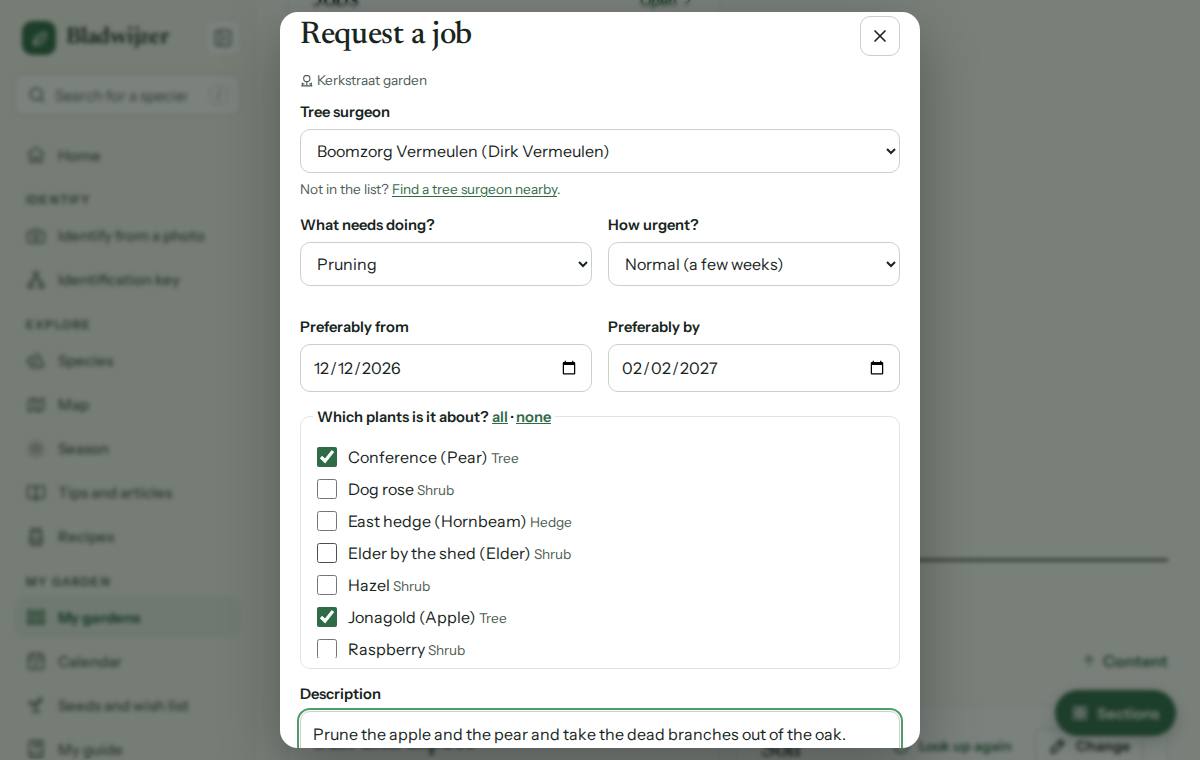
- Choose Request a job on the professional’s profile, or in your garden at the bottom under Help from a professional (or via ⋯ at the top). Only the owner of the garden can link a new professional; the others choose from the professionals who are already linked.
- Choose what needs doing (see below) and how urgent it is: normal (a few weeks), urgent (a week) or emergency (danger).
- If you like, choose a period (preferably from, preferably by).
- Select the plants concerned.
- Write a description: what needs doing, how the professional can get in…
- Add attachments: photos, a plan or a permit (PDF, JPG or PNG, up to 8 MB in total).
- Choose Request.
If the professional hires out equipment, you’ll see it below the professional under Add equipment: tick what you want as well, e.g. the shredder for the prunings or a cherry picker with an operator. The professional sees it in the request and on the work order; you agree the price together.
Have you spotted a problem in your garden that a professional should look at? Then Report a problem also offers Request a job.
Watch out
Bladwijzer warns you about the nesting season and a possible permit requirement for felling. Always check with your local council (gemeente or commune).
What can you request?
What you can choose depends on the kind of garden:
| Kind of garden | What’s possible |
|---|---|
| Garden (on the map) | Pruning, hedge trimming, pollarding or coppicing, felling, tree safety inspection, disease or pest, storm damage, planting, stump grinding, advice, garden maintenance or something else. |
| Vegetable garden | Vegetable garden upkeep, garden maintenance, disease or pest, planting, advice or something else. |
| Indoors | Houseplant care, disease or pest, advice or something else. |
What happens next
- The professional gets a notification and an email with a work order (PDF): your details, the map with a sketch of the plot and the numbered plants, the description and your attachments. You get a confirmation with the same work order. A vegetable garden or houseplants aren’t on the map, so their work order has no sketch.
- The professional accepts the request, schedules it, gives a quote or declines it with a reason. You get a notification at every step.
- Under Messages and history you can send each other messages. Under Attachments you can both add documents, such as a quote.
- Under Before and after photos you can both add photos from before and after the work, side by side; they also appear on the work order.
- For a tree, the professional can carry out a tree safety inspection (VTA). When they share the report, you get a notification and see it on the job, with the defects, the risk, the actions and a PDF. The next inspection becomes a task in your garden, and the measurements are added to the tree’s growth. It is a visual inspection from the ground: see For professionals.
- After the work, the professional marks the job as completed, with a report. This also appears in the garden’s log (without the price). The pruning schedule for the selected plants moves along with it. After a felling, you can remove the plants from your garden in one click.
- As long as the request is open, you can cancel it.
You can always download the work order from the request (Work order (PDF)).
Good to know
Bladwijzer doesn’t act as a go-between: you agree the price, timing and payment directly with the professional.
Accepting a quote and receiving an invoice
The professional can send a quote in the job. You get a notification and see it under Quotes and invoices in the job, with the lines, the VAT, the total and a PDF. Choose Accept, or Decline with a reason: the professional gets a notification and can send a new version. A quote is valid until the date shown on it. After the work, the invoice appears in the same place, with its number, due date, IBAN and structured payment reference to pay with.
A maintenance contract
If the same work comes back every year, the professional can send you a maintenance contract, e.g. the hedge every year in June. You get a notification and see it under the jobs of your garden: the visits, how often they come back, the plants and the guide price. Choose Accept, or Decline with a reason.
Once the contract is running, you receive a proposal about six weeks before each visit: a job with the status Proposed, with a notification. Choose Confirm (one click), or Skip if the visit is not needed this time: the contract simply carries on. If the professional has already proposed a date, the visit is scheduled as soon as you confirm. If you do not reply before the end of the period, the proposal lapses; after two weeks without a reply you get one reminder (also for a contract you have not accepted yet). You can always stop the contract on the contract’s page.
Having your garden mapped
No time to draw your garden yourself? With Garden mapping, Bladwijzer comes round: we identify every tree, shrub, hedge and plant and draw it all into your garden. You then have a complete pruning plan (for each plant, when and how, in your pruning calendar and as a garden report), your harvest with recipes from your own garden, the flowering calendar and tailored advice. It is a paid service, on request; the starting price is shown on the page.
- Create your garden in Bladwijzer, with at least its location on the map (see Creating a garden).
- At the bottom of your garden, under Help from a professional, choose Request garden mapping, or go to Garden mapping (also from your Worksheet) and choose your garden.
- Optionally give your preferred period and a few words about your garden (size, what grows there, when best to call).
- Tick that Bladwijzer may edit your garden: without that permission we cannot draw it. Choose Request.
- The request is an ordinary job of the type Map the garden: you follow it up among your garden’s jobs. You first receive a tailored quote; only once you accept it do we plan the visit (see Accepting a quote). You pay after the work, with the invoice in Bladwijzer.
- Only the garden’s owner can request it, for a garden or a kitchen garden (not for Houseplants), and there is one request at a time per garden.
- Bladwijzer gets the Edit role on your garden. Everything we draw stays yours. Once it is done, you can reduce or remove that access under Share.
Writing a review
Once the job is completed, Bladwijzer asks on the job’s page how satisfied you are.
- Open the job (e.g. from your garden or the notification) and choose Leave a review.
- Choose 1 to 5 stars and, if you like, write what you thought of it.
- Choose Post review.
- Your review appears on the professional’s profile and counts towards the stars in the list. Other users see your first name and the first letter of your surname.
- The professional gets a notification and can reply. The reply appears below your review.
- Want to change something? Choose Edit review later.
- There’s one review per job. It’s written by the customer: the owner of the garden, someone with the Edit role, or a participant who can request jobs.
Good to know
The administrator can hide a review that’s offensive or about something else. If you see one, let us know.
Updated on 2026-10-12